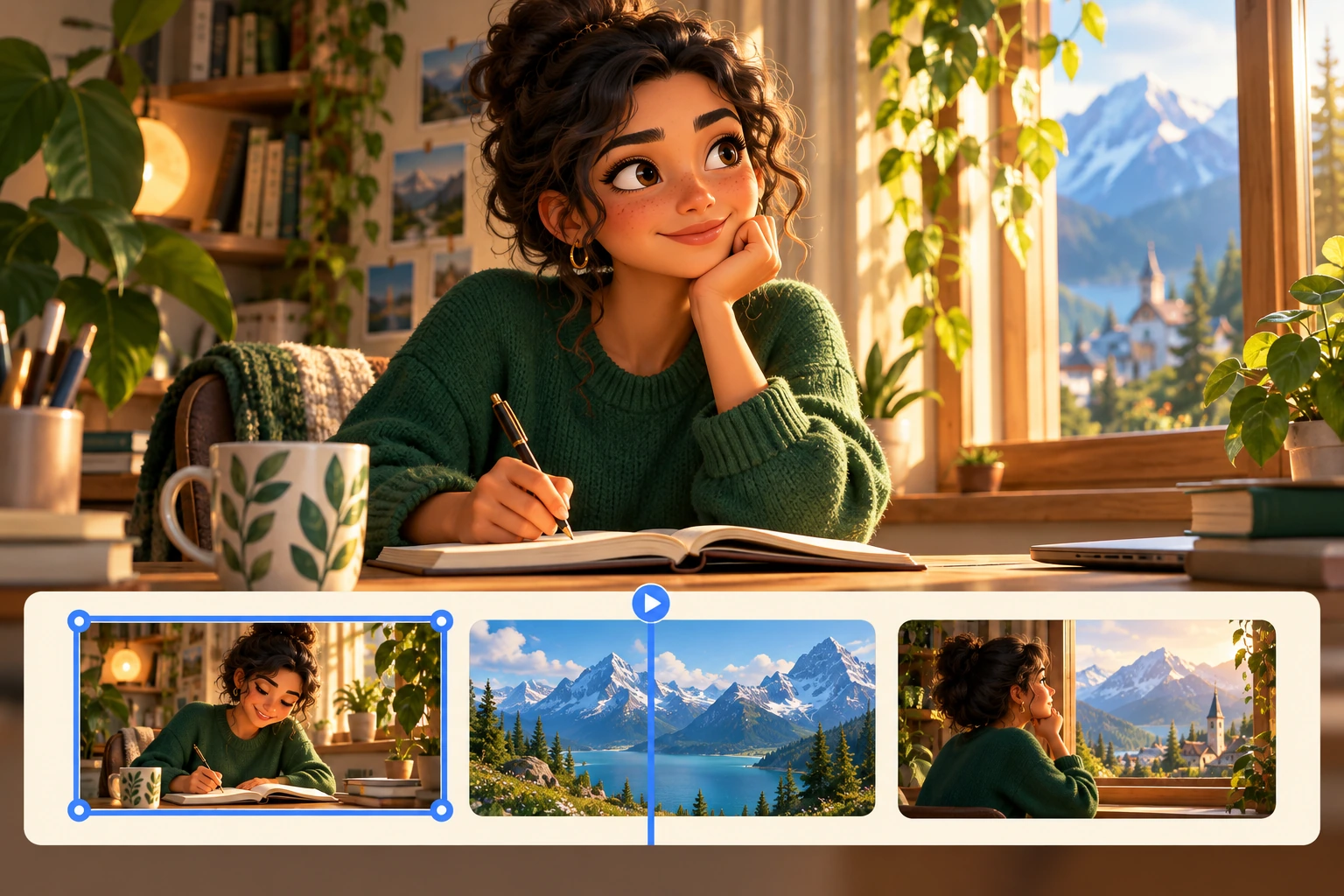
Turn your script into an animated video you can edit.

Create videos for TikTok, Reels, and YouTube Shorts with AI visuals, voiceover, captions, and sound. Use your own photos and clips, then edit each scene before export.

Up to 250 words. You can also attach photos and choose an optional AI avatar.

Made with Plamia
Showing videos 1 through 1 of 14

Explore Templates

Find a look for your next story. Pick a template and make it your own.

Create an editable video from your script.

Plamia turns your script, photos, and clips into a video you can edit on a multi-track timeline.
Start with your video script.

Paste a story, an explanation, or a message you want to share. Plamia uses your script to plan the scenes and bring together AI visuals, voiceover, captions, and sound. You get a complete first draft, with every part still open to editing. Our script-to-video guide walks you through the process.
Try it now
Plamia script composer with three illustrated scenes from a cat story

Find a template that fits your story.

Give your video a clear direction from the start. Choose a template that brings visuals, text, motion, and sound together in one consistent look. Go with a paper story, playful characters, comic artwork, or a retro arcade feel. Plamia builds the video around your script, and you can refine the result in the editor afterward.
Try it now
Plamia Templates showing Old Paper, Bubble Pop, Comic Punch, and Retro Arcade
Make it yours with your own media.

Bring the photos and video clips that matter to your story. Upload your own images and have Plamia restyle them to match your chosen look, or let AI create the visuals for you. Combine your media with generated scenes, then review the result and replace or rearrange anything you want to change on the timeline.

Try it now
Plamia Upload media panel beside animated statue and space video scenes

Keep control of every scene.

Your generated video opens as an editable project, not just a finished MP4. Move and trim clips, replace images, update captions, and adjust the voiceover and sound effects on separate tracks. Refine the timing of each moment, preview how it all works together, and export when the video looks and sounds the way you want.

Try it now
Light-theme Plamia editor with project media, a video preview, and separate photo, caption, voice, and sound effect tracks

More ways to tell your story.

Choose your look, bring your own photos, and give your story a voice. Every scene stays yours to edit.

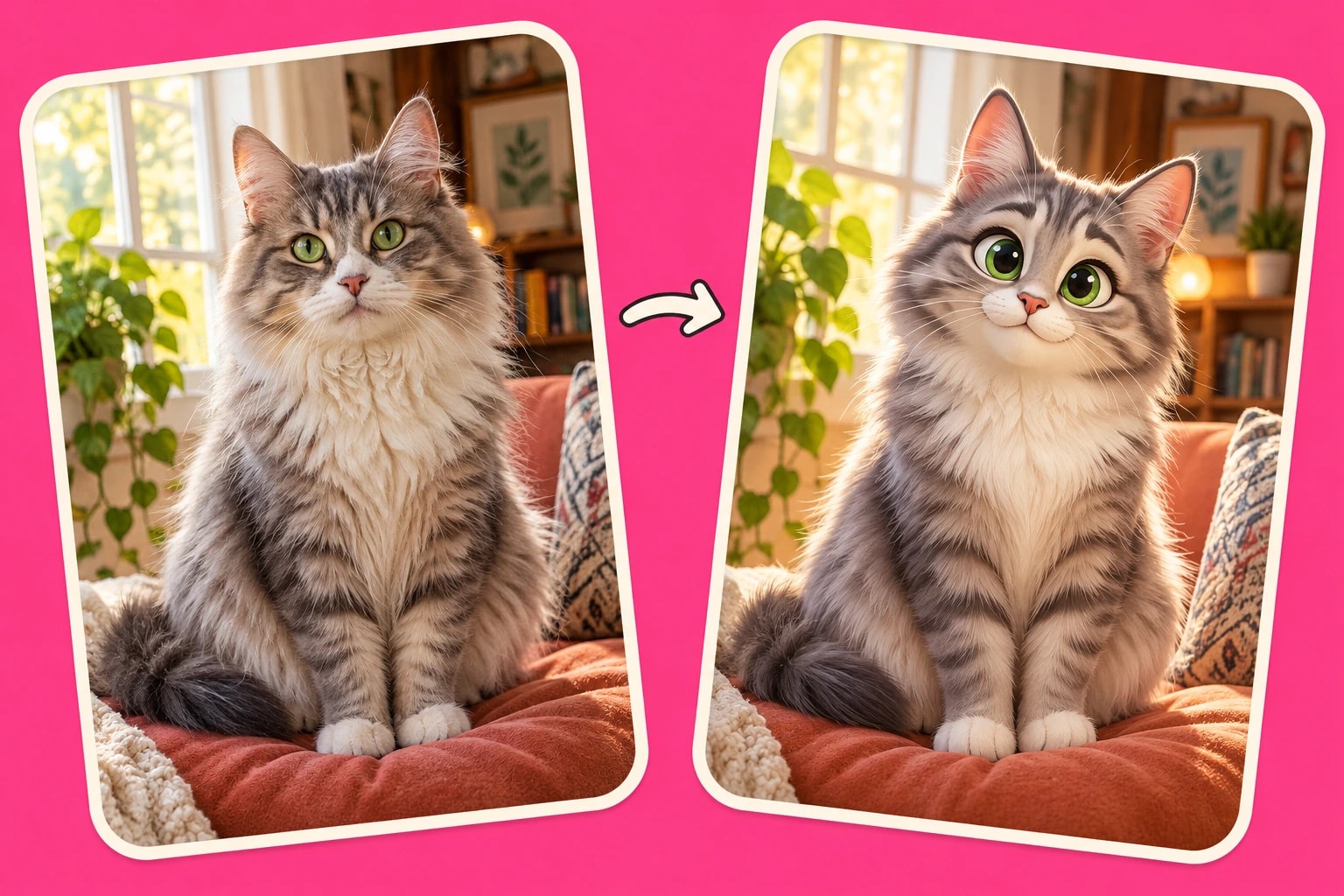
A cat photo beside its cartoon interpretation on a bright pink background

Make your photos part of it

Turn your photos into matching characters and scenes.

Read more
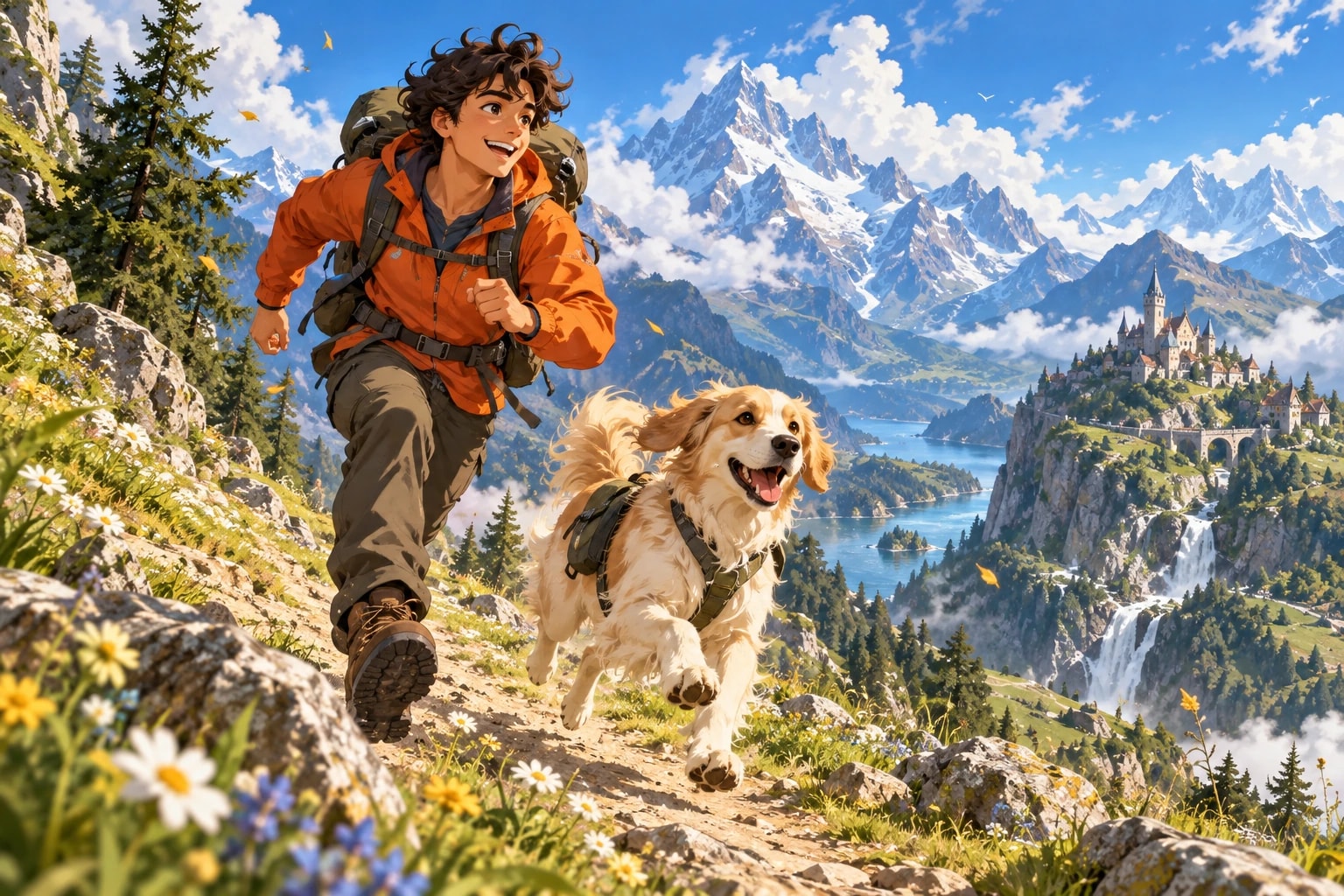
An anime-style adventurer and dog running through a vivid mountain landscape

Bring scenes to life

Add movement, transitions, and cinematic moments to your story.

Read more
An illustrated writer above a storyboard showing rearrangeable scenes

Keep every scene editable

Easily tweak visuals, captions, and timing, whenever you want.

Read more

Everything stays editable.

Open the editor and change every part of the generated video. Plamia Help explains the controls, exports, and limits.

  • CaptionsStyle and time every word.
  • TransitionsAdd a transition between any two scenes.
  • Media libraryReuse your photos, video clips, and saved assets.
  • Background removalRemove the background from any photo or image.
  • Green screen removalRemove green, blue, or magenta backgrounds.
  • Video animationsZoom, drift, pan, punch, or shake a video clip.
  • Sound effectsPlace and trim effects on the timeline.
  • TimelineMove, split, duplicate, and adjust video clip timing.
  • BackgroundsChange the background behind every scene.

Ideas to start. Guides to make it happen.

From your first script to the final edit, find practical ways to make your next video.

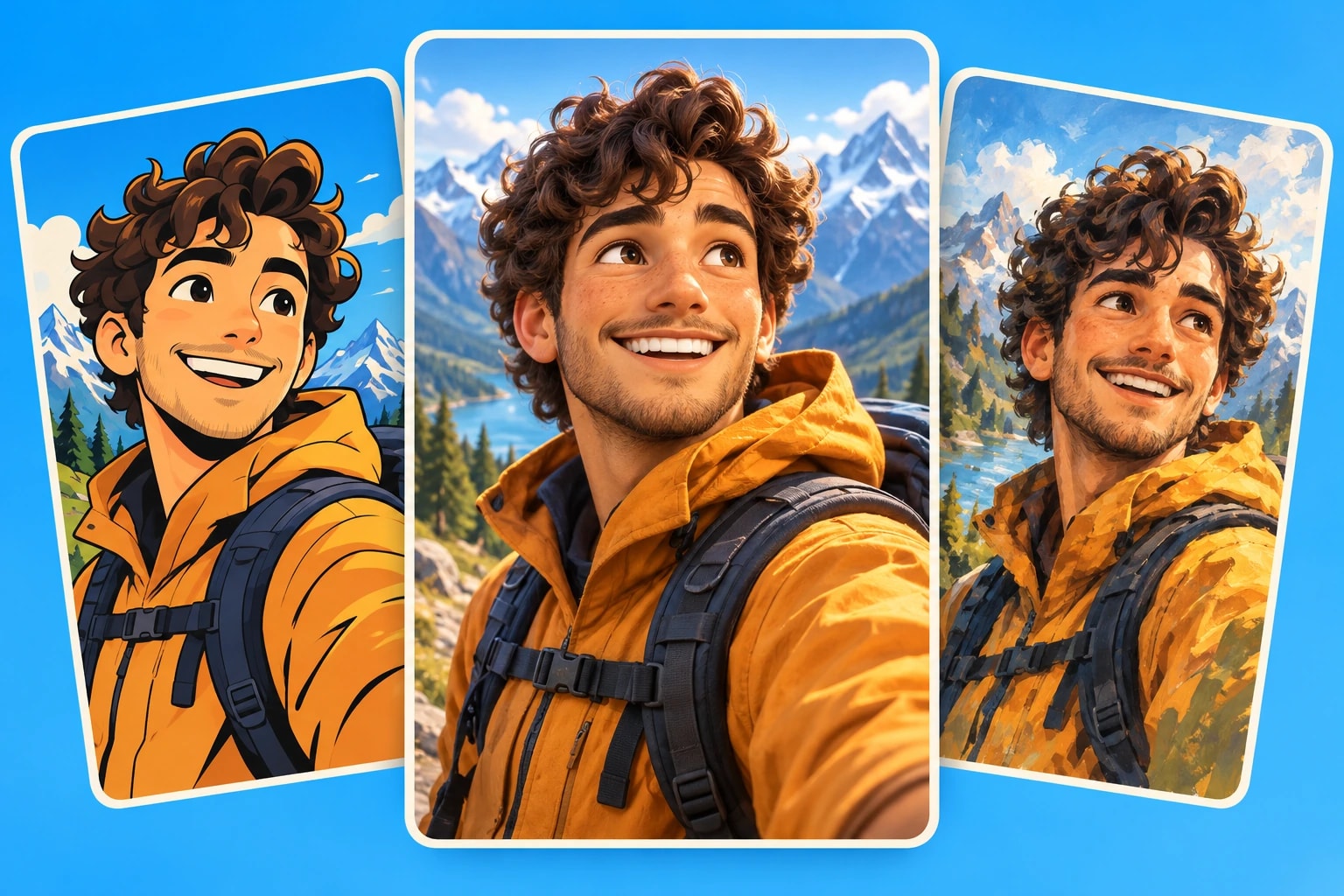
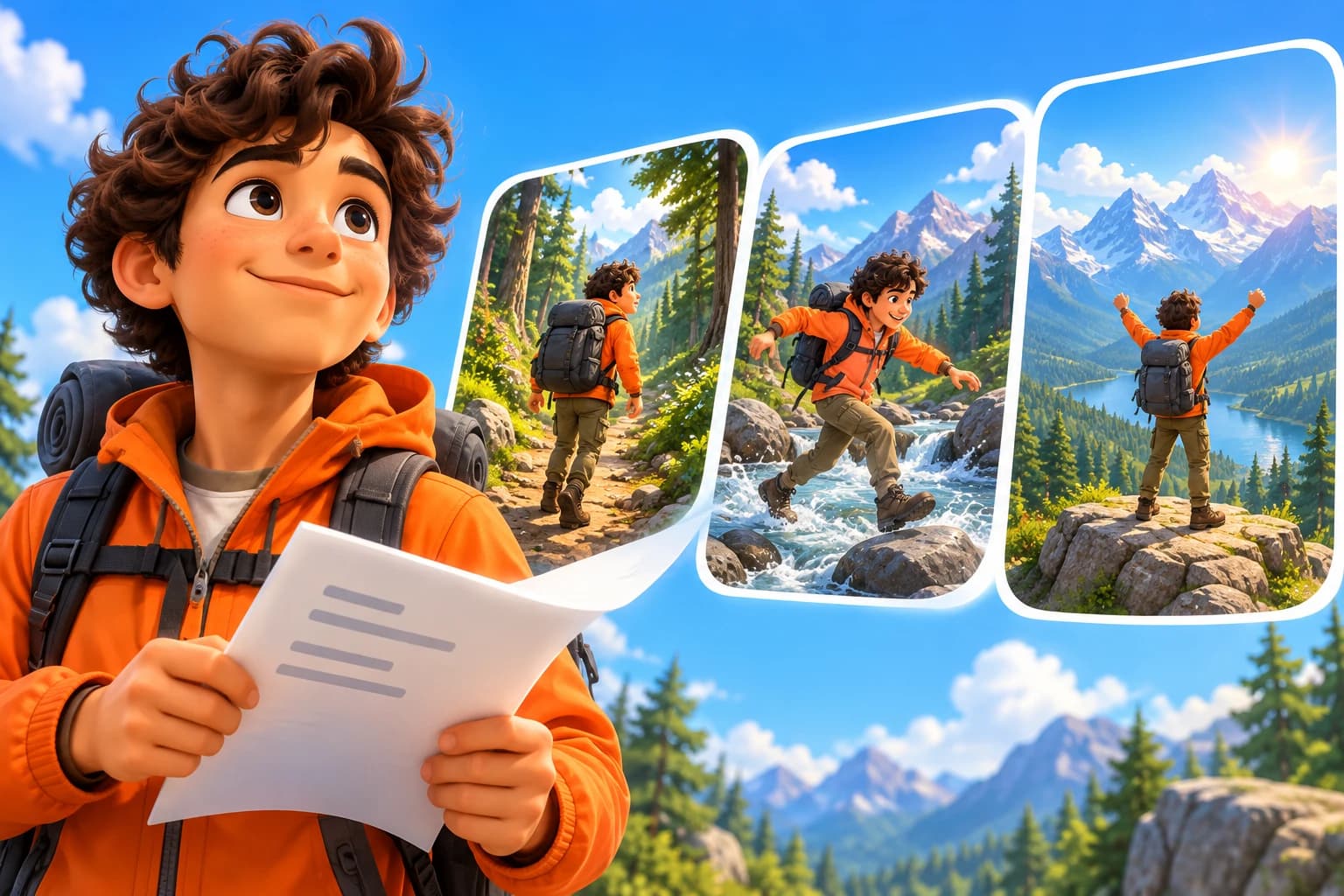
A cartoon adventurer beside a script and a sequence of illustrated scenes on a bright blue background

How to Make a Short Video from a Script

Turn a finished script into narration, scenes, captions, and an editable video.

Read more
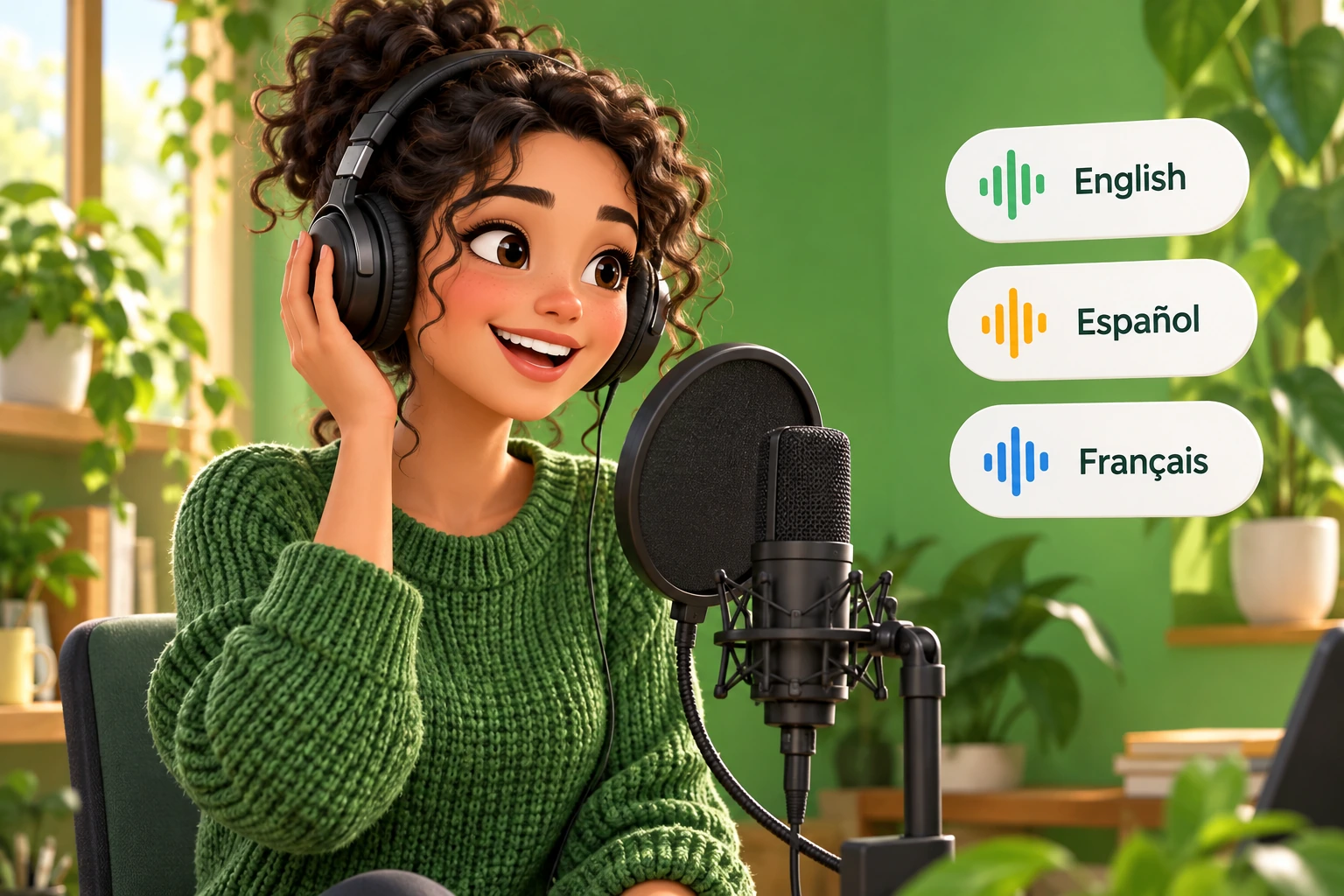
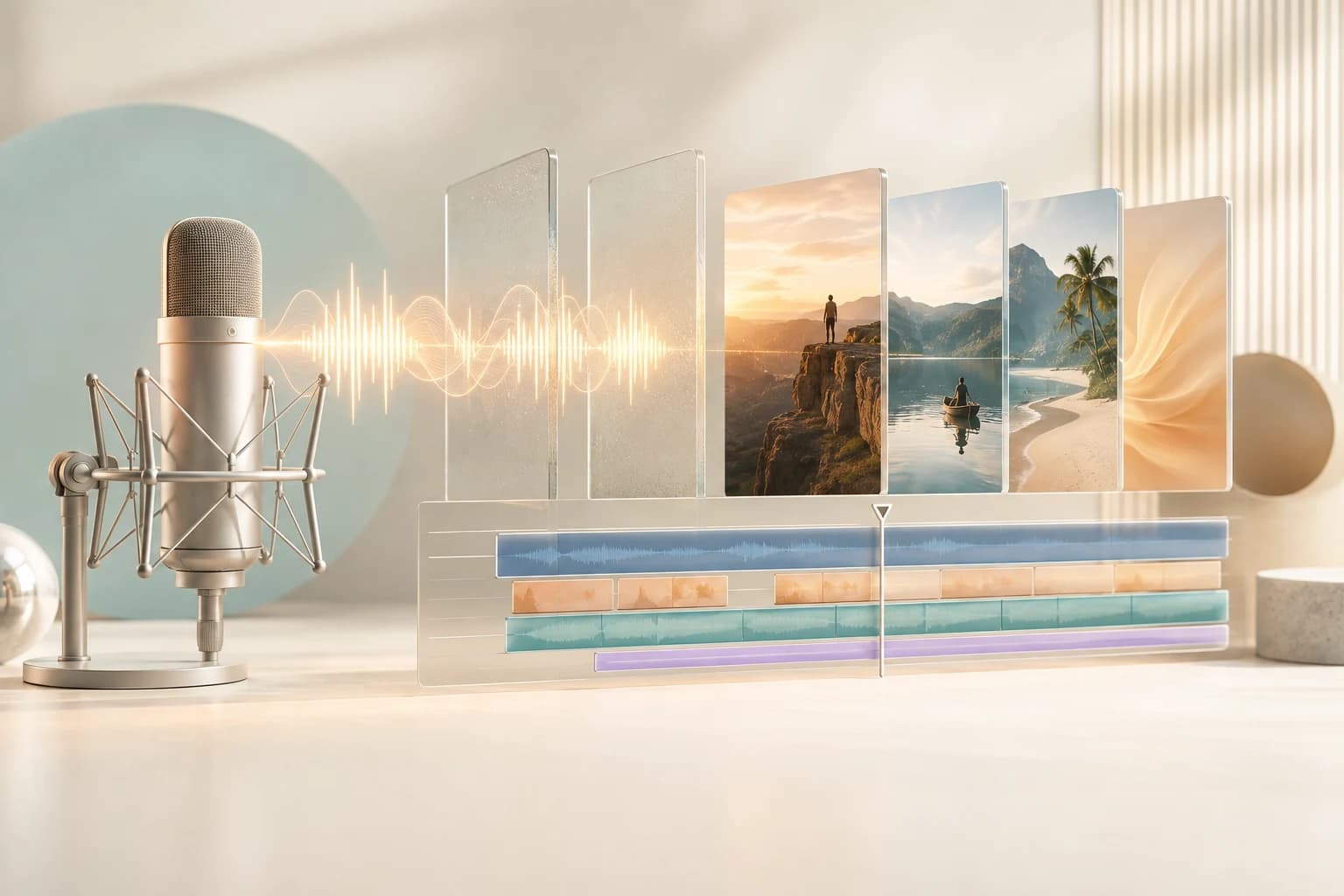
A studio microphone and waveform flowing into visual scenes and an editable timeline.

How to Turn a Recorded Voiceover into an Editable Short Video

Keep your recording, add matching visuals and captions, then adjust the cuts in an editable timeline.

Read more
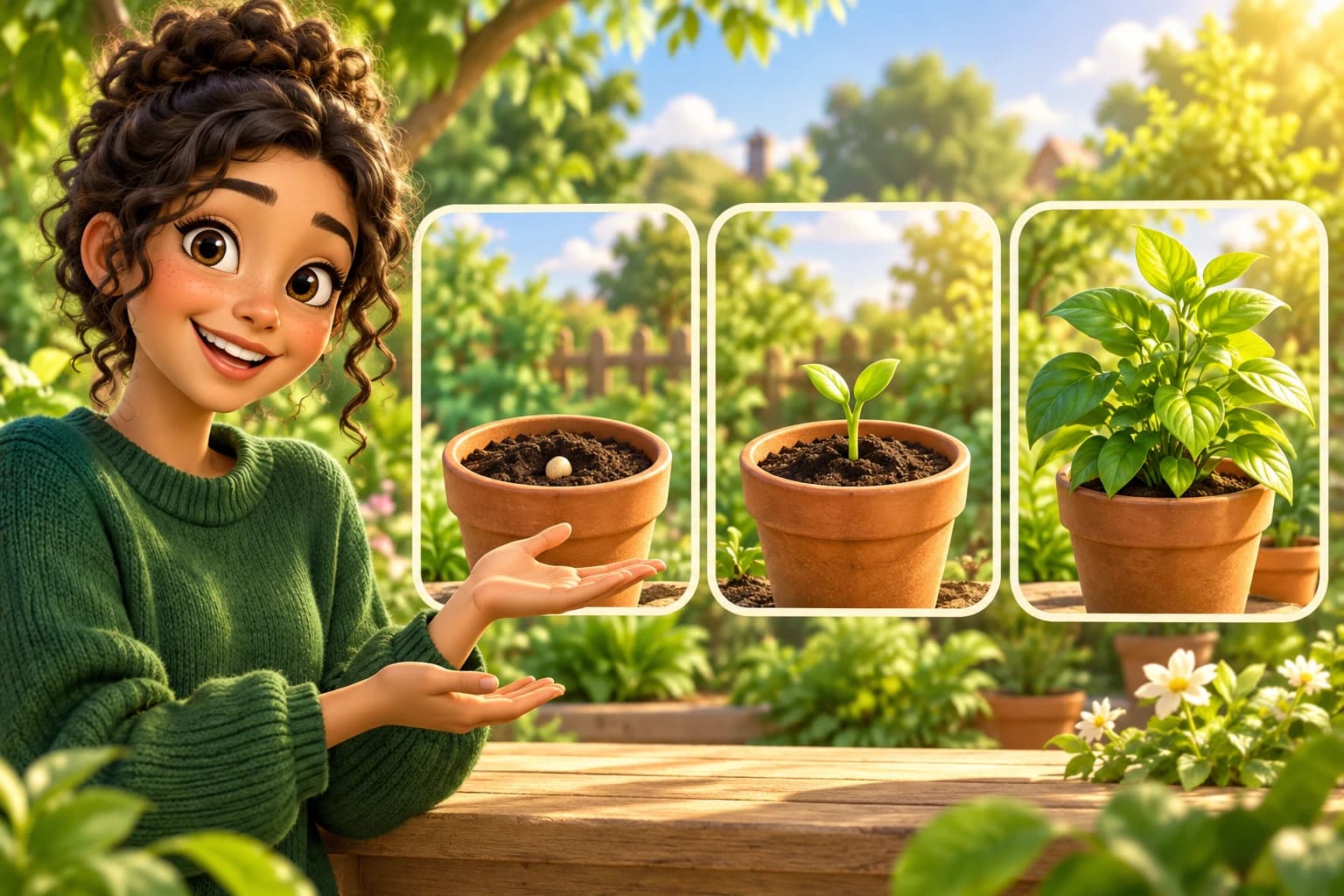
A 3D illustrated woman explaining how a seed grows into a plant across three storyboard frames

How to Write an Explainer Video Script

Structure one clear idea from question to answer, then map each beat to a useful visual.

Read more
Three glass vertical video frames with coordinated caption bars and timing controls.

How to Format Captions for Short-Form Video

Turn a transcript into readable, synchronized captions that remain clear on a mobile screen.

Read more
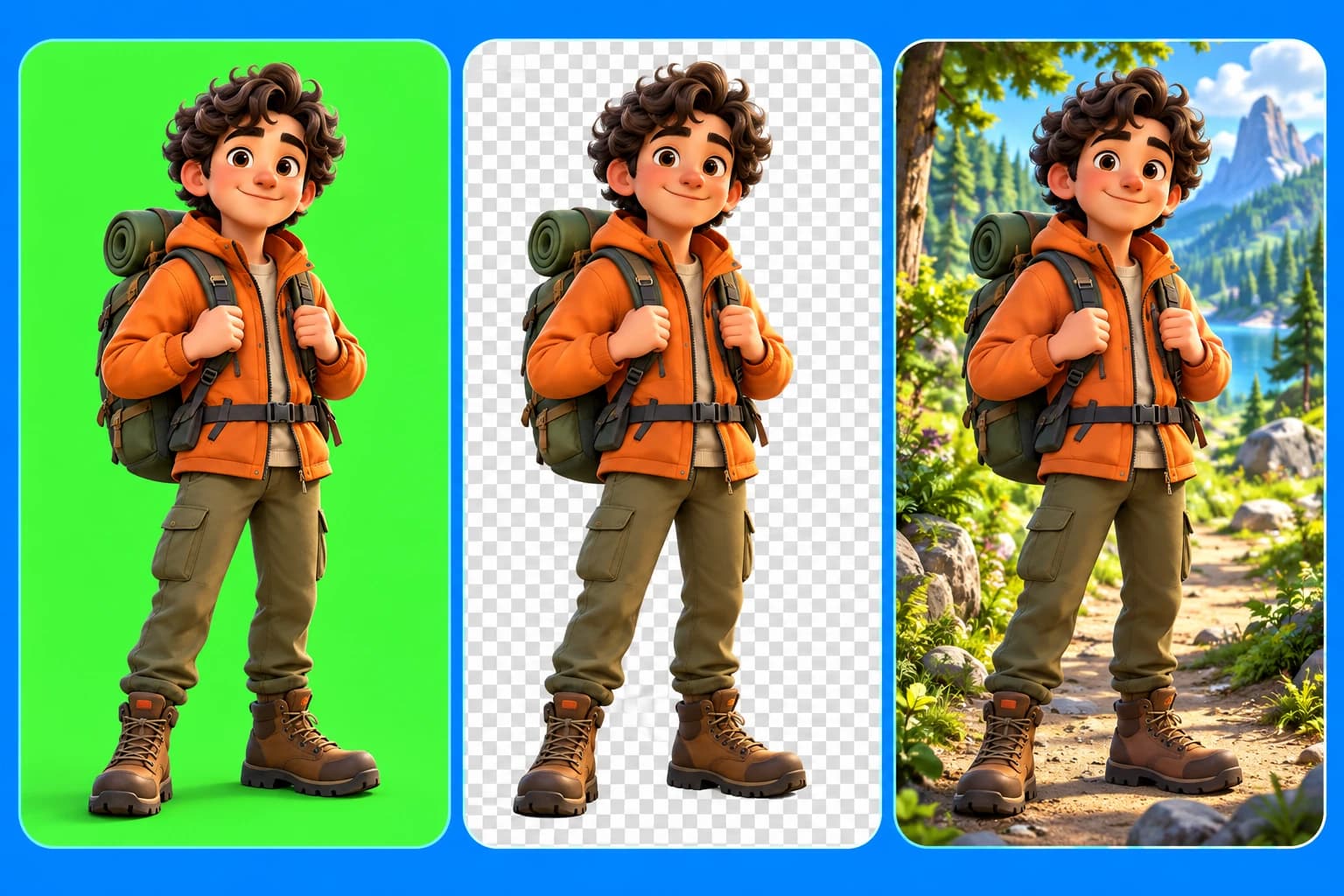
A 3D illustrated explorer moving from a green screen through a transparent layer into a forest scene

How to Use Green Screen Video in AI-Generated Videos

Add a green-screen clip, remove its background with chroma key, and save it for future AI-generated videos.

Read more
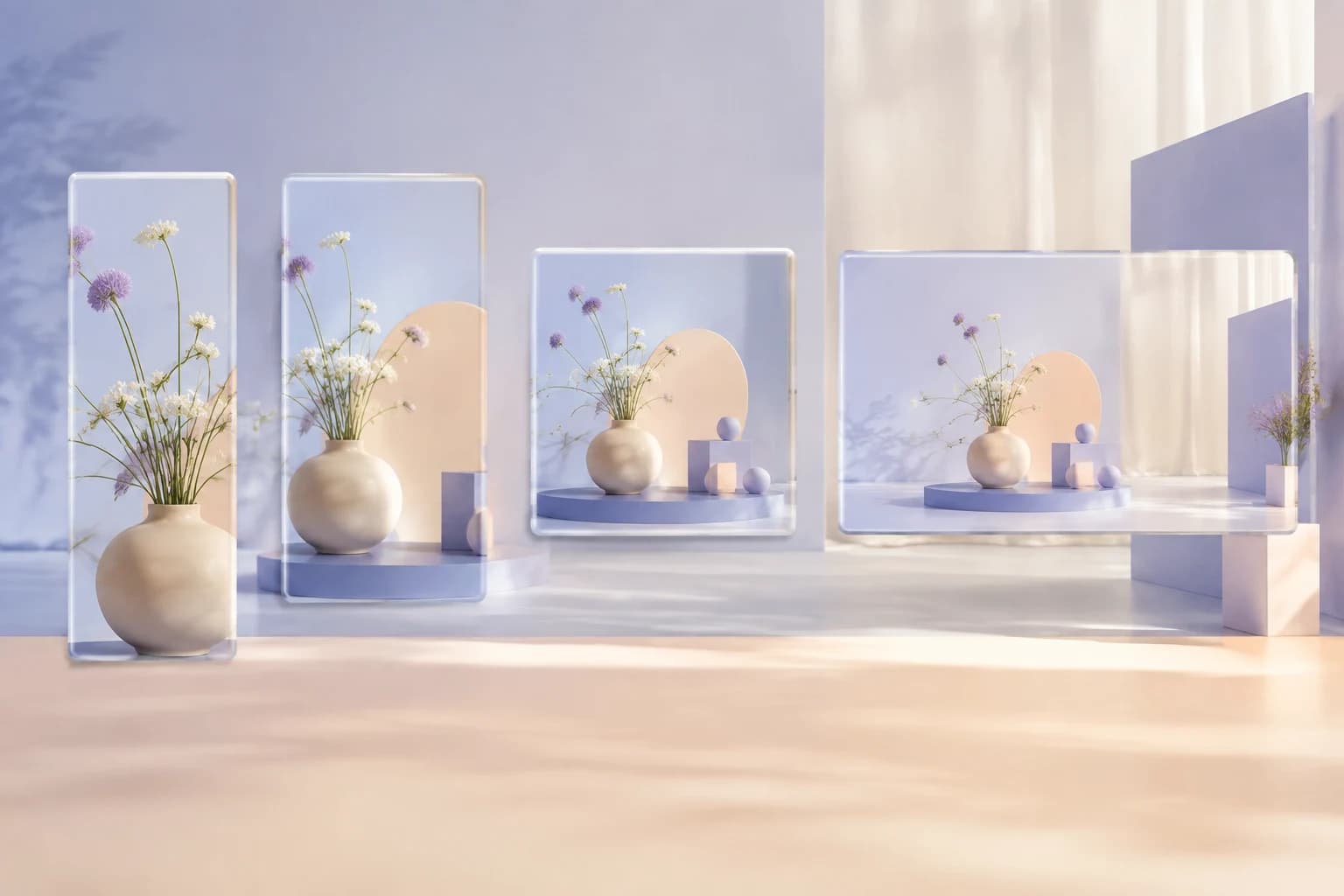
One still-life scene presented inside vertical, portrait, square, and landscape glass frames.

Video Aspect Ratios Explained: 9:16, 4:5, 1:1, and 16:9

Choose the project shape before editing, then protect subjects, captions, and motion throughout the frame.

Read more

Frequently asked questions

How long does AI video generation take?

Plamia generates a short video in minutes. Processing time varies with script length, the number of generated images, and voiceover requirements.

How many credits does an AI video use?

Credit usage depends on the script length and the amount of new content generated, including images and voiceover. Editing, exporting, and reusing saved assets do not consume additional credits.

Can I edit the generated video?

Yes. Plamia creates an editable video project with separate tracks for video clips, captions, voiceover, sound effects, and backgrounds. Export the final video as an MP4 when it is ready.

Which video sizes and formats are supported?

Plamia supports 9:16, 1:1, 16:9, and 4:5. Videos export as H.264 MP4 files at 30 fps. Desktop exports use the full project dimensions; mobile exports preserve the selected ratio and cap the long edge at 1280 px.

Can I reuse the same AI avatar?

Yes. Save a character as an AI avatar and reuse it across projects. Saved visual styles can be reused in the same way.