 Plamia
Write an explainer video script around one question.
Why are skyscrapers designed to move? The script answers that question through one clear sequence: wind creates changing pressure, complete rigidity carries a cost, and a tuned mass damper reduces the motion occupants feel.
“It moves against the building’s sway while dampers absorb part of the motion.”
Keeping the script focused gives every scene a specific purpose. The opening introduces the problem, the middle explains the engineering trade-off, and the final scenes show how the mechanism changes the result.
Follow the same structure in how to write an explainer video script.
Use your own photos and diagrams.
The reference set combines exterior views of Taipei 101 with diagrams and photographs of its tuned mass damper. Supporting construction and people references help the video move between the scale of the tower, the mechanism inside it, and the experience of the people who use the building.
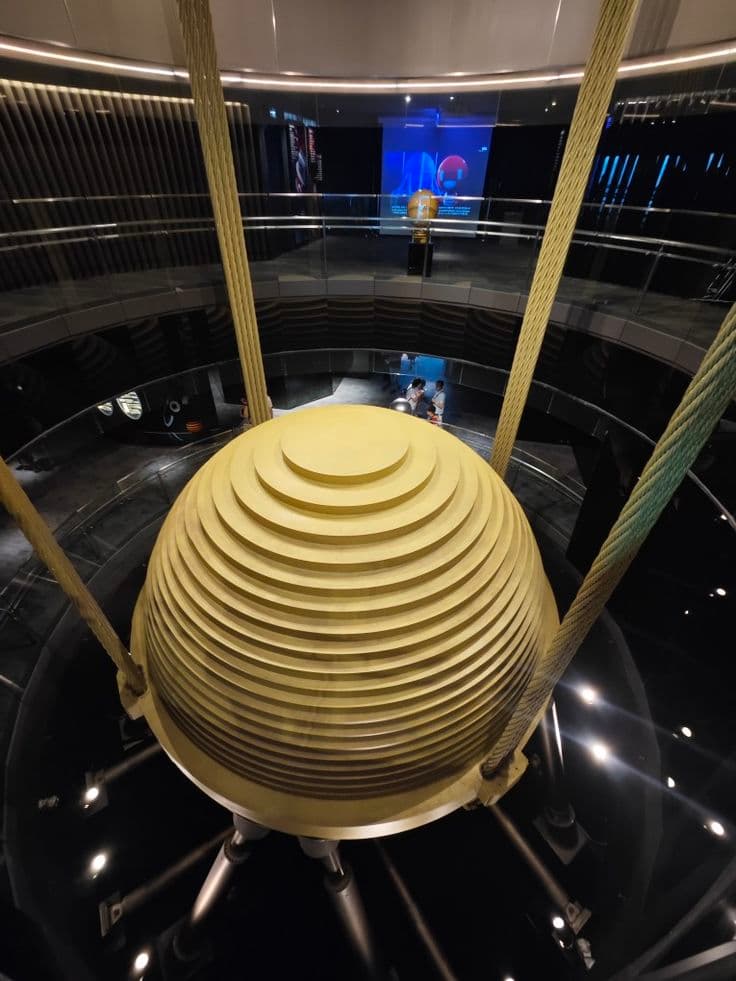
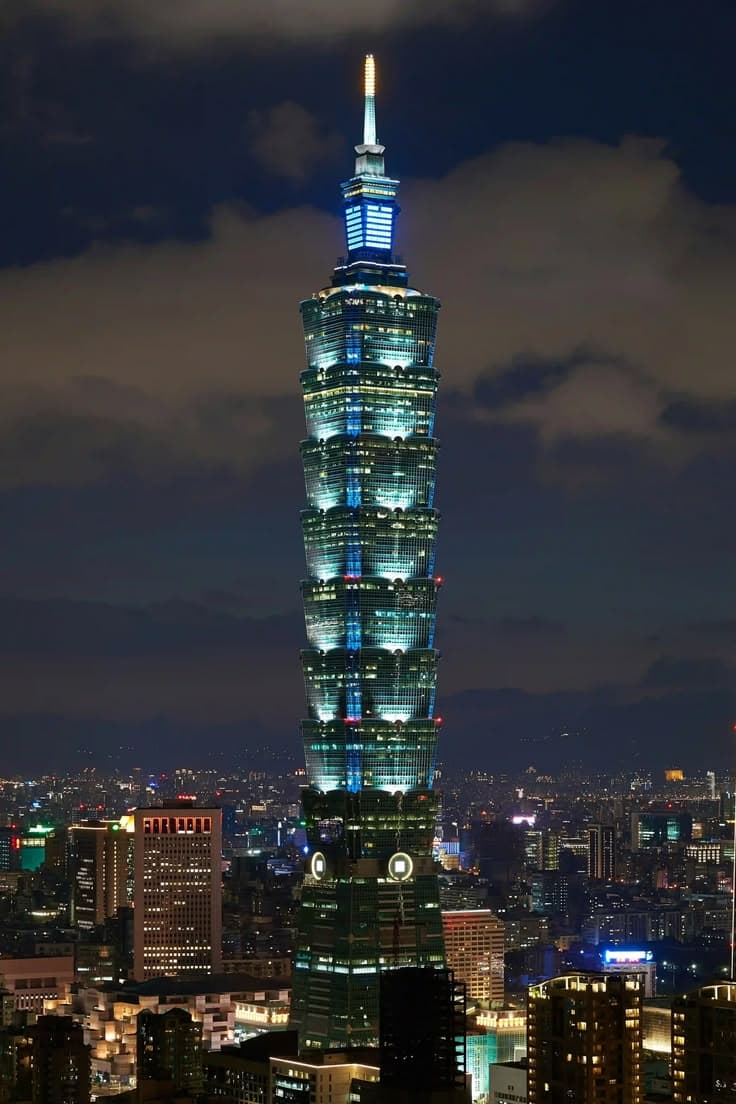
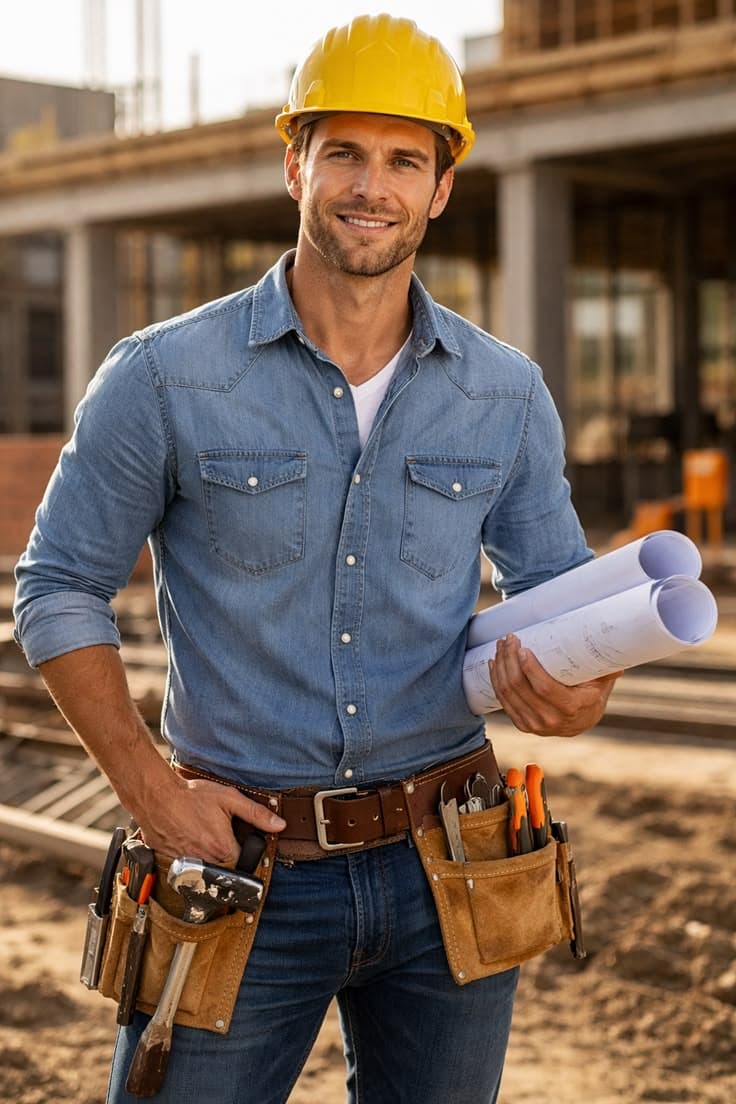
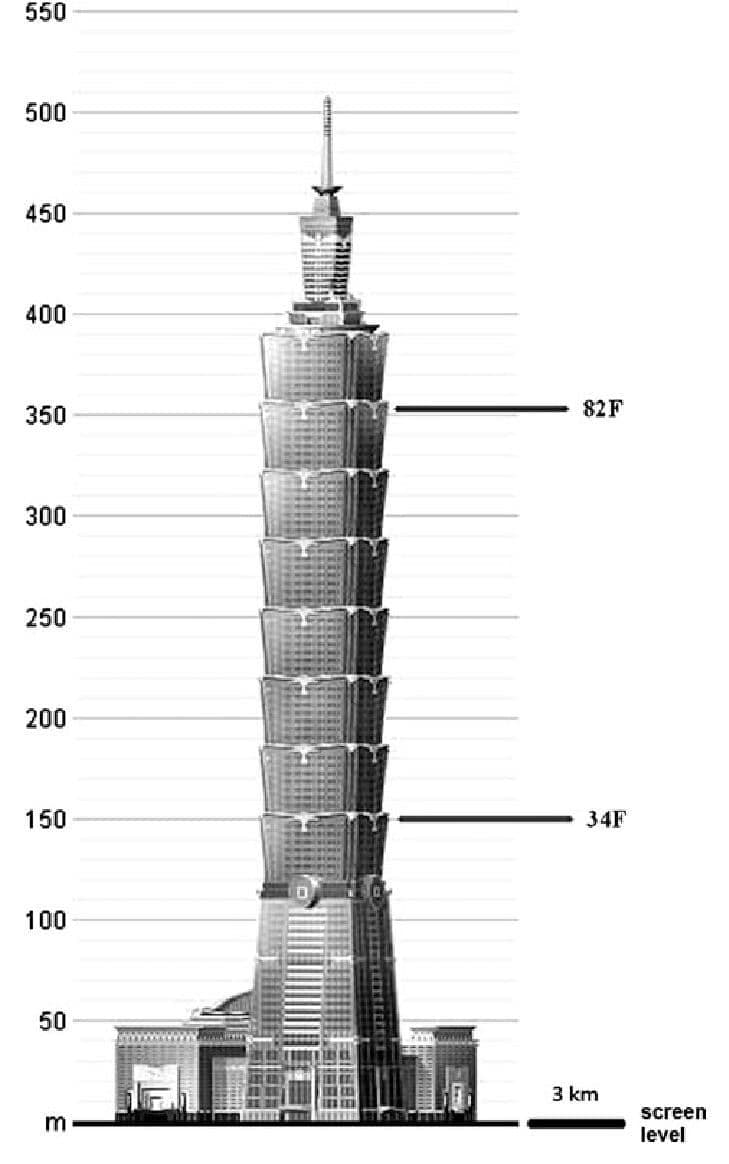
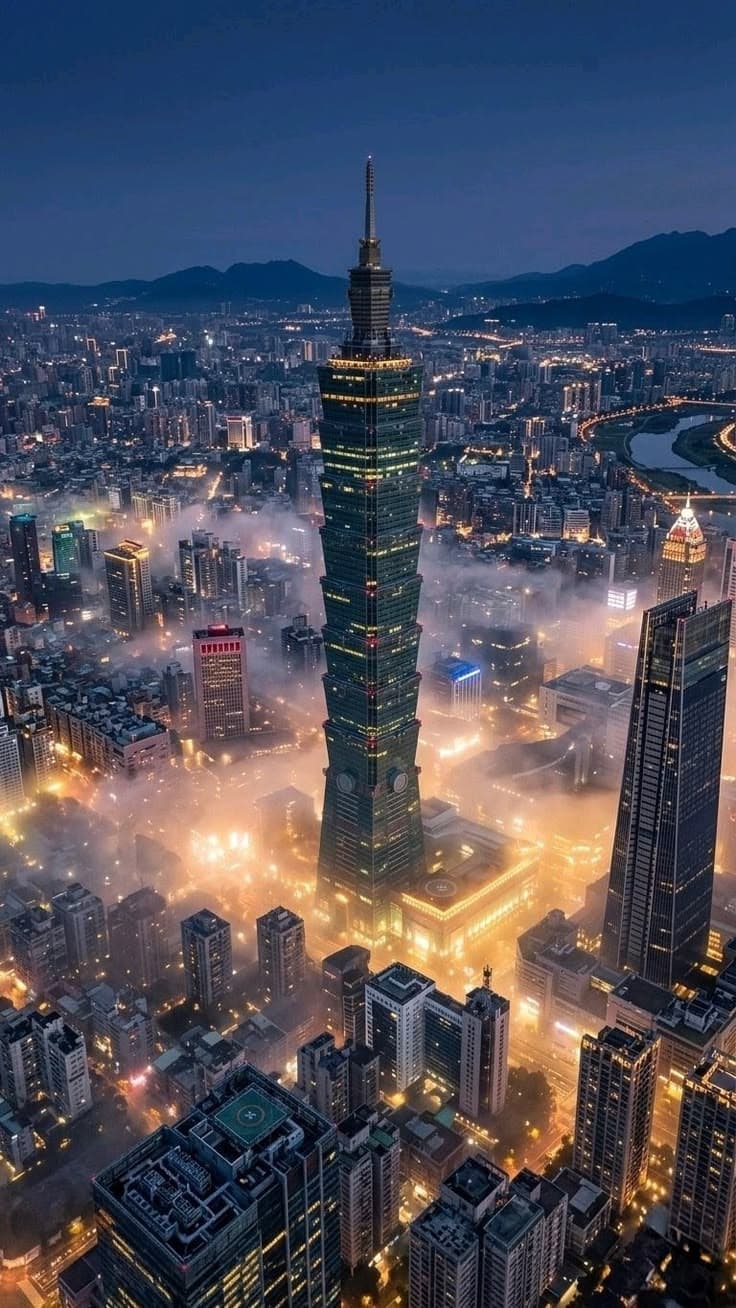
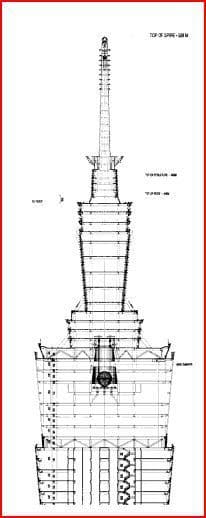
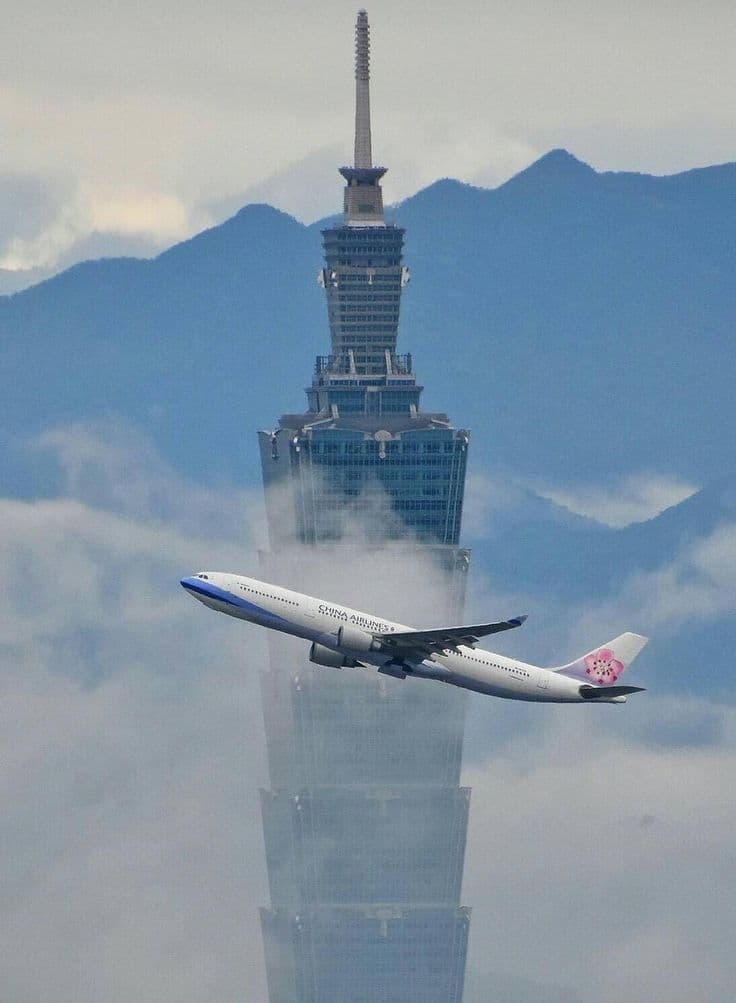
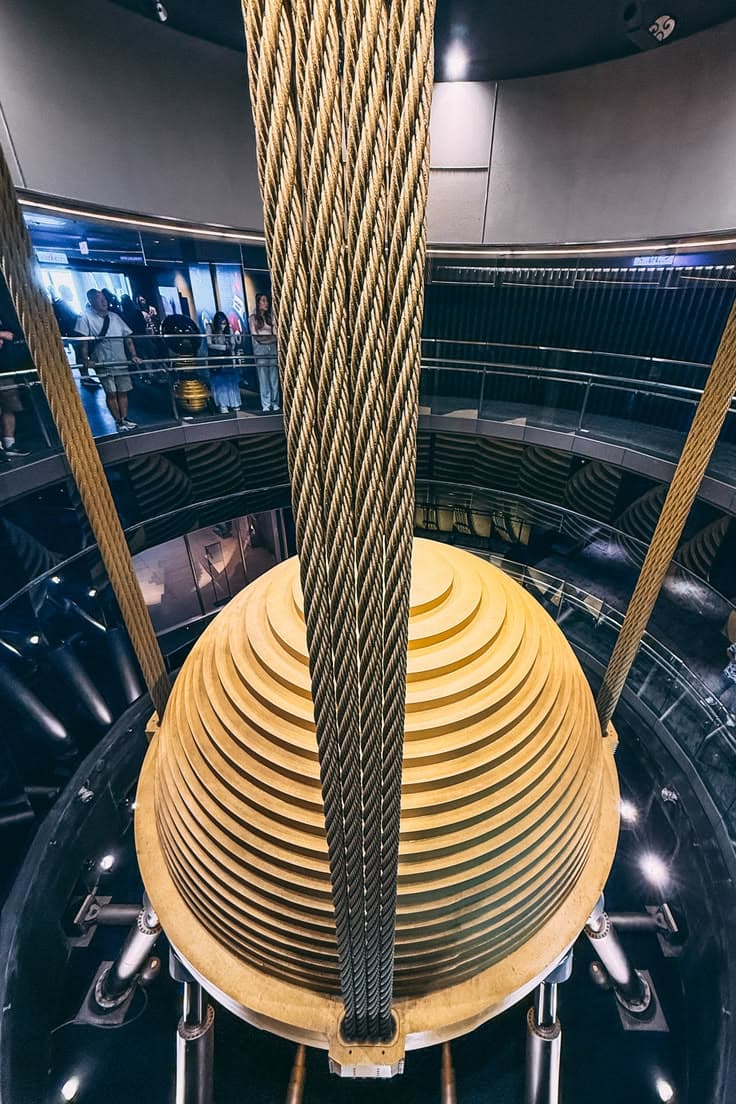
Check the origin, licensing, and factual relevance of every uploaded file. The rail above documents the source media used in this production; it does not independently verify each file.
Add a character reference when a guide helps.
A recurring illustrated character can connect the explanation without taking over every scene. Here, an engineer in a white hard hat appears at selected moments, while the tower, diagrams, and tuned mass damper carry the technical detail.
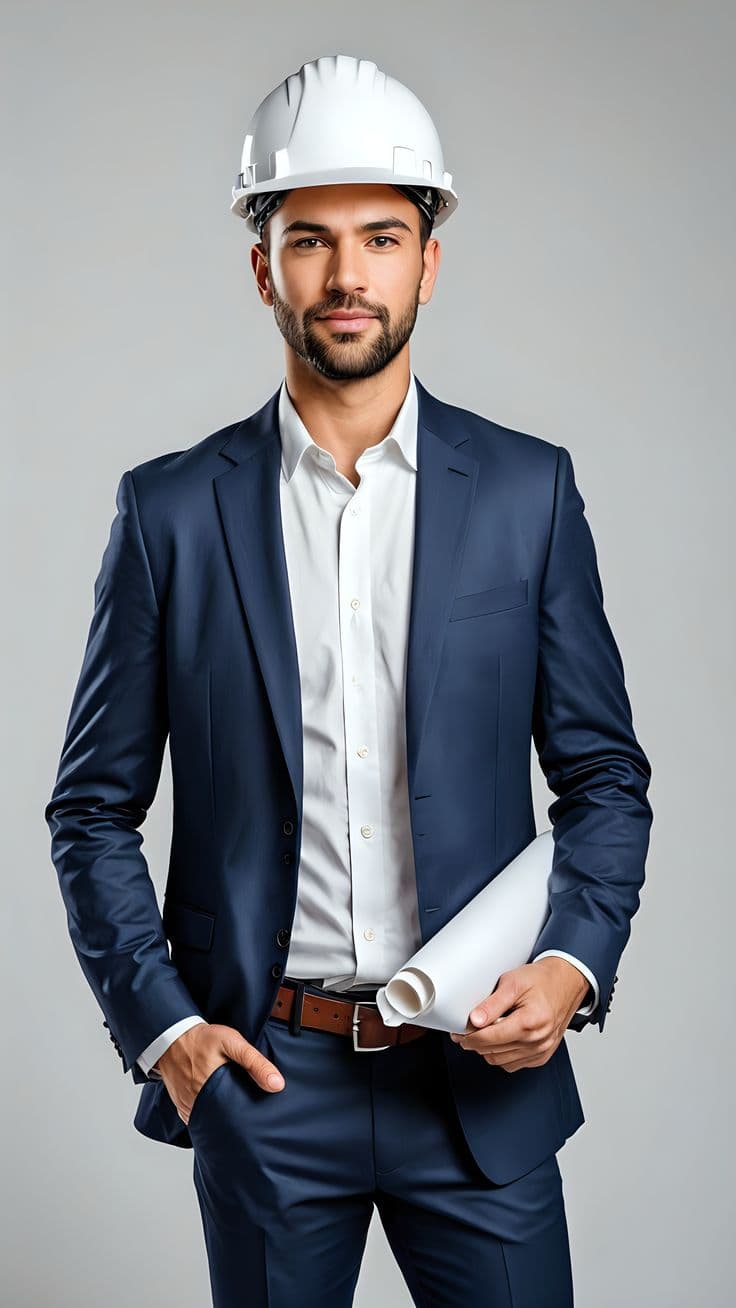
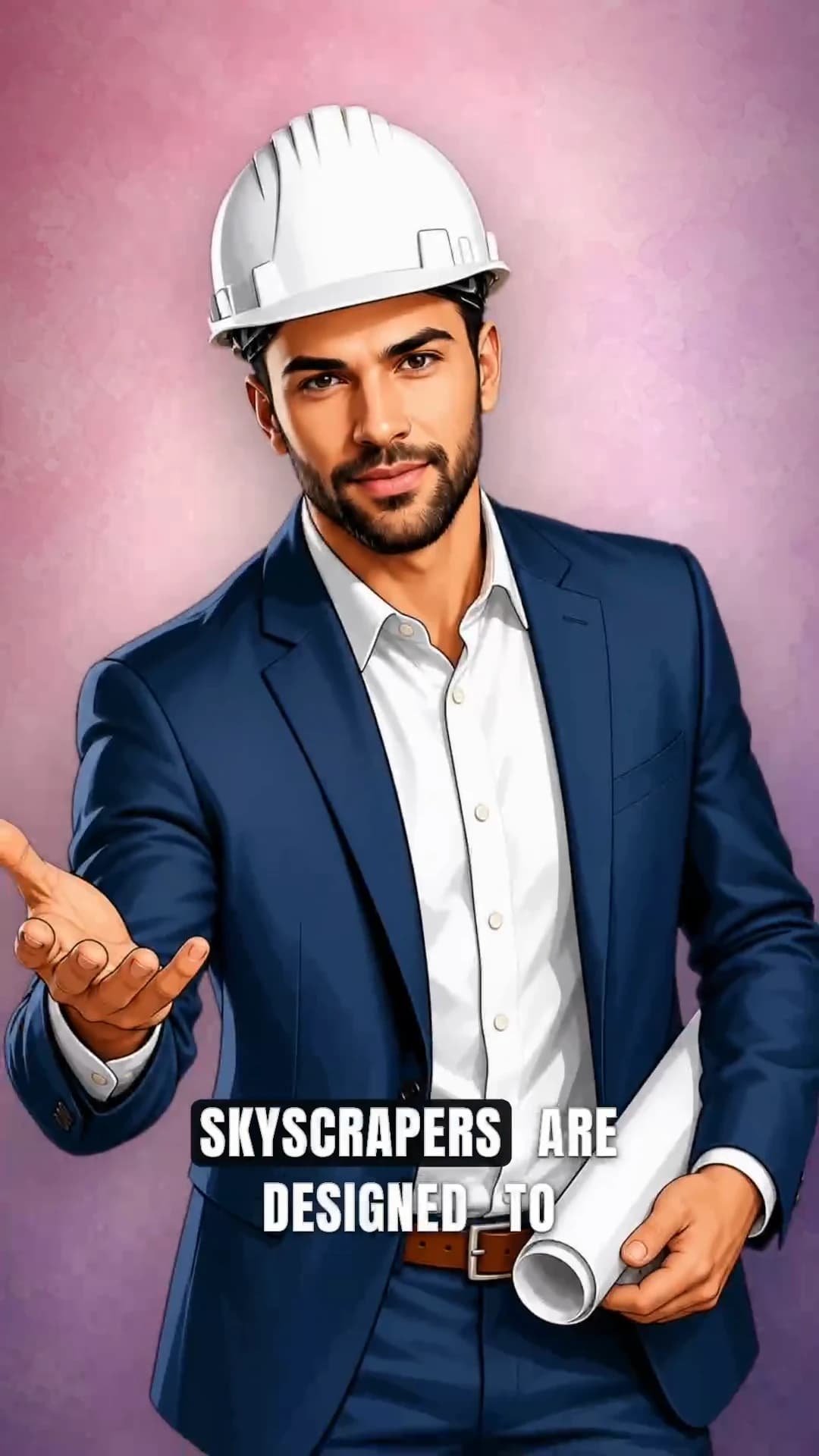
For a new project, attach a character photo with the plus button beside your script. Plamia interprets it automatically. Reattach the same reference in a later project if it is useful, then review the generated appearance; there is no separate Avatar picker or guarantee of identical features.
Give different source images one consistent setting.
The archived example uses a pink watercolor backdrop to connect its character, photographs and captions. For a new video, choose a template before generation. Blueprint Hero can suit a technical explanation; Warm Story can give an illustrated subject a softer tone. Always inspect the generated mechanism and labels against the source.

- Project background
- Custom pink watercolor
- Visual subject
- Taipei 101
- Illustrated guide
- White-hard-hat engineer
- Source formats
- Photos and diagrams
Keep narration and captions tied to the explanation.
The 79-word script supplies the narration and the caption sequence. Word timing keeps captions aligned with the generated speech in the video, while the words, emphasis, and timing remain editable on the timeline.
Current voice settings, caption timing, and editor controls are documented in Plamia Help.
- Narration
- Generated from the script
- Caption timing
- Synced to speech
- Text editing
- Words and emphasis
- Timing control
- Editable on the timeline
Build the explanation from cause to result.
The generated video follows a clear progression instead of presenting disconnected facts. Each part answers the question raised by the one before it, so the viewer can follow the engineering logic without losing the thread.
- Problem
- Wind pressure makes the tower sway
- Constraint
- Complete rigidity adds weight and cost
- Mechanism
- A tuned mass damper moves against the tower
- Result
- Occupants feel less of the motion
Create your own explainer in the current app.
- Choose Animation and paste a focused script of up to 250 words.
- Select a template and optionally attach photo references with the plus button.
- Review Voice, Voice delivery, Pace and Captions under the gear.
- Check the credit quote and click Create video.
- Use Replace for inaccurate visuals and Arrange to correct overlapping layers. Review the explanation with sound and captions.
References may be redrawn. Use a verified diagram in the editor when exact labels or geometry matter. Export requires Creator or Pro and uses no additional credits.
The complete 79-word script.
Skyscrapers are designed to move. Wind creates changing pressure across a tall facade, making the structure sway even when the ground is still. Making the entire tower rigid enough to stop that motion would add enormous weight and cost. Instead, some buildings use a tuned mass damper: a heavy block or pendulum near the top. It moves against the building’s sway while dampers absorb part of the motion. The tower still flexes, but occupants feel much less of it.
Explain one complex idea with a clear visual sequence.
Add a focused script, the references you trust, and an optional character photo when the explanation benefits from a guide. Plamia builds an editable video; you decide what is ready to publish.
Get StartedThe video and source images document a production made with an earlier version of Plamia. The instructions below describe the current template and photo-reference workflow.