 Plamia
Add animated B-roll
to your videos.
Turn your recording into a video with animated scenes.
Keep your original voice.
The scene changes.
Your voice stays.
Plamia’s AI B-roll generator follows your speech and creates visuals for the moments that need them. It cuts from your recording to an animated scene, then back to you.
The illustrations follow your chosen template. The original audio connects the whole video.
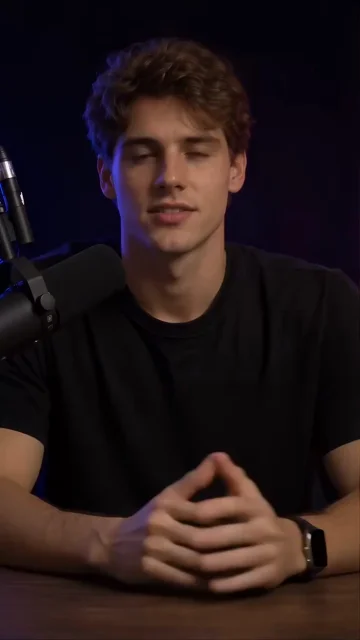
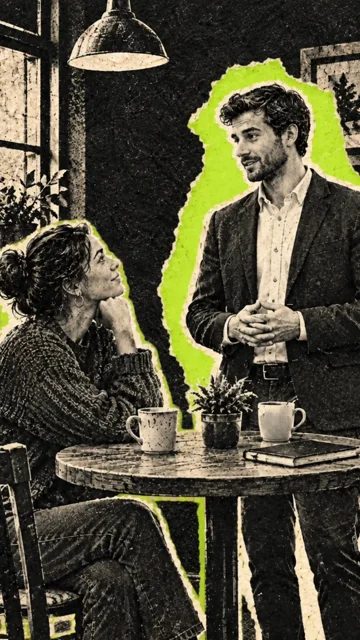
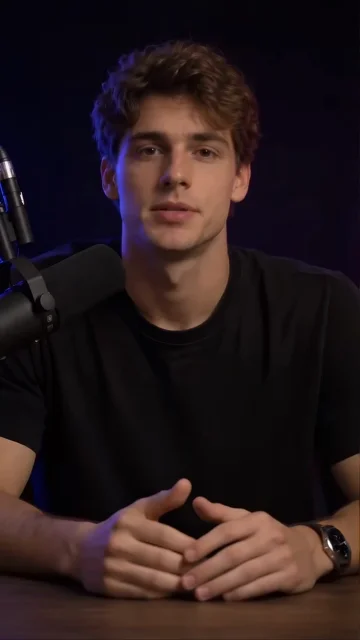
Animated B-roll for the stories and ideas you already share on camera.
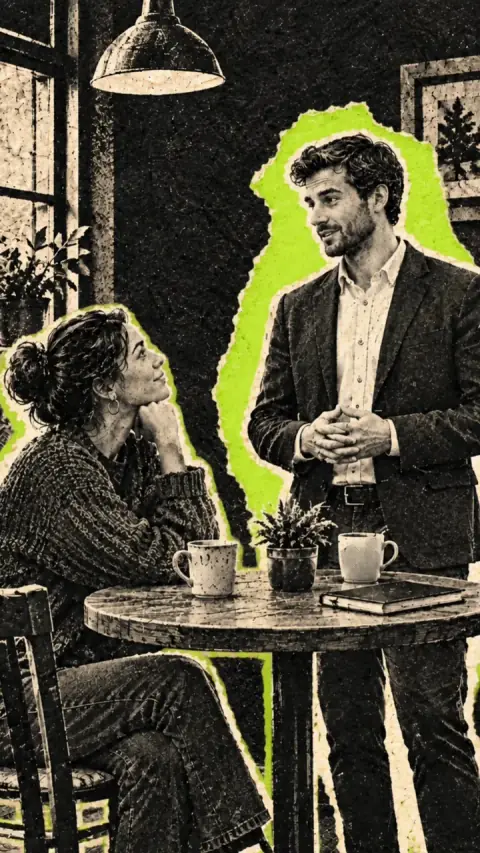
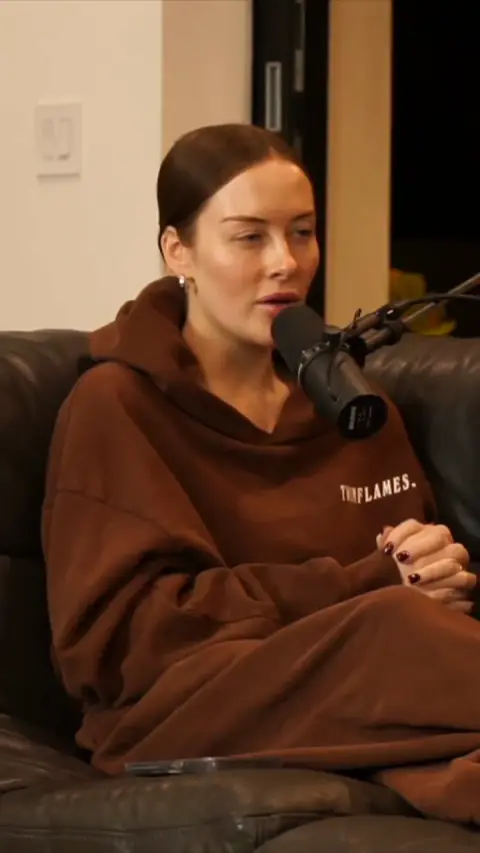
Podcast conversations
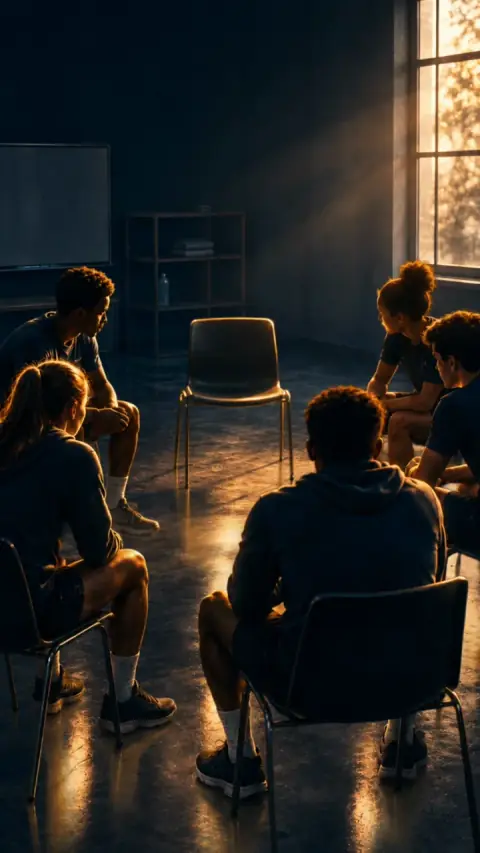
Personal stories
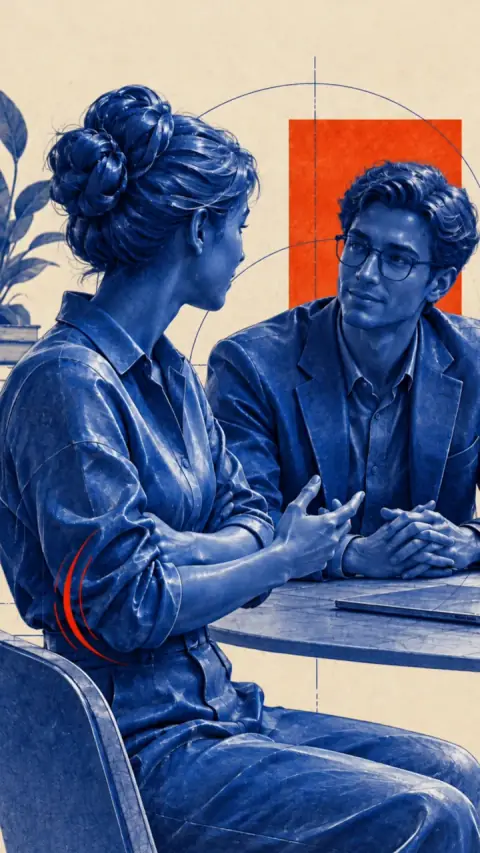
Ideas and explanations
How to add B-roll with AI
Your recording, a visual style, and an editable video.
Upload your recording
Upload a vertical video with clear speech, up to 100 MB. Use a talking-head recording, a podcast clip or a spoken explanation. Plamia keeps your original voice and delivery.
Choose your visual style
Choose a template to set the look of your B-roll. Plamia follows your speech and creates animated illustrations for the moments you describe. Add reference photos to guide a specific person, place or product.
Edit and export
Open the result in the editor to review your recording and animated scenes together. Replace an illustration, adjust the timing or change the captions. Export the finished video for Reels, Shorts or TikTok.
Frequently asked questions
What is AI B-roll?
B-roll is the supporting footage shown while someone speaks. Plamia generates animated illustrations from the meaning of your recording and places them between moments of the original video. Your speech continues across the edit.
Will Plamia keep my original voice?
Yes. B-roll uses the audio from your uploaded recording. Your voice, delivery and pauses stay in the video; you do not need to choose an AI voice or record a new voiceover.
What kind of video can I upload?
Use a vertical 9:16 recording with clear speech and an audio track. Videos can be 3–180 seconds long, with a file size of up to 100 MB. Podcast clips, talking-head videos and spoken explanations all work.
Can I choose the style of the B-roll?
Yes. Choose any Plamia template before creating the video. The generated illustrations and motion follow that template. You can also add reference photos to guide particular scenes.
Can I edit the generated scenes?
Yes. The result opens on an editable timeline. Replace an illustration, adjust a scene’s timing or change the captions before exporting. Editing existing media does not use extra credits.
Can I try it for free?
New accounts receive 300 welcome credits to generate and preview videos. You’ll see the credit estimate before generation. Downloading the finished video requires a Creator or Pro plan.
How do I export my video?
Export a vertical MP4 in 720p, 1080p or 4K on a Creator or Pro plan. You can publish the result on TikTok, Instagram Reels or YouTube Shorts. Exporting uses no additional credits.