

GPT Image 2.5
Create a product photograph, change its lighting from a reference or design a poster around exact headline text.
Generating and editing still images
GPT Image 2.5 takes text and optional image references and returns a still image. Use Flare to explore compositions quickly. Sunburst is useful when an edit needs to preserve small details across versions.
For a first image, describe the subject, framing, materials and light. For an edit, start with the approved image and describe the difference you want. The bottle study below uses the first photograph as the actual input for the second.
- Aspect ratio
- 1:3 through 3:1
- Maximum image area
- 8.29 megapixels
- Output formats
- PNG, JPEG and WebP
GPT Image 2.5 settings
Canvas dimensions
Choose a canvas between 1:3 and 3:1, with each edge a multiple of 16 pixels. Place the subject for its final crop. A tall bottle that fills a portrait frame needs more room around it in a wide banner.
Reference edits
Give each reference a job. Use one image for the bottle shape and label, then describe the new surface and lighting. In the wet-slate example you can switch between the original and the edit to check the details.
Rendering quality
The API accepts Auto, Low, Medium, High, Extra High and Max. Draft the composition first, then inspect the selected version at delivery size for small lettering, reflections and fine edges.
File format
Choose PNG or WebP when the background needs transparency. JPEG works for an opaque photograph. OpenAI labels image areas above 2560 × 1440 as experimental for this model family.
A product shoot and a print brief
Compare the two photographs to see what survived the lighting change. In the railway poster, the brief reserves the upper sky for two specific words.
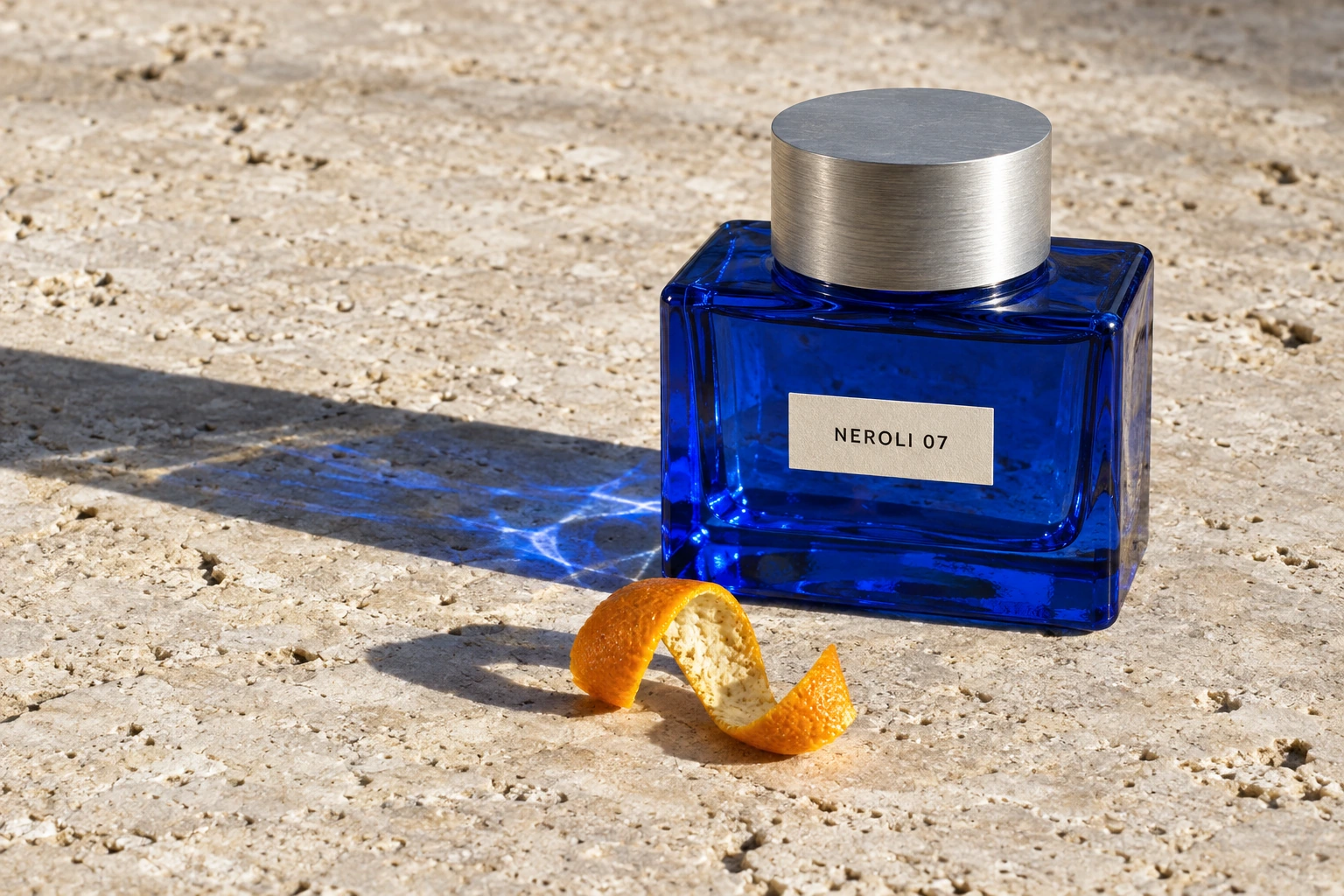
Photograph a squat, rectangular cobalt-blue perfume bottle with a wide brushed-aluminum cap on pale travertine. Its small ivory label reads “NEROLI 07” in black capitals. Put the bottle just right of center, with a single curl of bitter-orange peel in front. Hard morning sunlight from the left casts a long blue shadow. Close tabletop composition, mineral texture, believable glass refraction, edge-to-edge landscape frame.
Keep the same cobalt bottle, cap, ivory NEROLI 07 label, proportions, orange peel and camera position. Change the pale stone to wet black slate after rain. Light the glass from behind with a narrow amber strip so that its edge glows. Add a few droplets to the slate and a soft reflection below the bottle. Keep the label readable.
Design a landscape railway poster for the night train through the Alps. A cream electric train rounds a tight curve under a vermilion viaduct at blue hour. Use four screen-printed inks, ultramarine, warm cream, red and charcoal. Give the train and viaduct bold, simple silhouettes. Print the exact headline “NIGHT PASSAGE” in tall ivory lettering across the upper sky. Fill the composition to all four edges.
Where GPT Image 2.5 fits
| Product campaigns | Build a first shot with a clearly visible label and distinctive silhouette. Use that shot as the reference for each new setting. Check cap proportions, logo placement and reflections across the set. |
|---|---|
| Posters and title frames | Quote the exact title, state how many lines it occupies and reserve an area for it. Review the lettering at thumbnail size as well as at full resolution. |
| Series artwork | Make one reference responsible for the subject and another for the palette. If the character starts borrowing features from the style image, simplify the references and describe their roles separately. |
| Editor assets | Generate a prop on a transparent background to place over footage or type. Leave room around fine details and inspect the silhouette against the final background color. |
When to move from GPT Image 2.5 to 2.6
For a still poster, a packaging concept or a reference edit, 2.5 already gives you framing, quality and transparency controls. Choose 2.6 when you want that artwork to move in a loop or you need editable SVG paths.
Start creating with GPT Image 2.5
Open ImagesChoose a format
Open Images and set the aspect ratio for your final placement.
Write the brief
Describe the subject, framing and light. Add a reference if you want to edit an existing image.
Review the result
Check the details at full size. Use your preferred image as the starting point for the next edit.
Questions about GPT Image 2.5
Should I use Flare or Sunburst?
Flare is OpenAI’s fast everyday image model and the variant available in Plamia Images. Sunburst is designed for more precise edits. The wet-slate example was generated separately with Sunburst to show a reference edit.
Can I keep the same object across several shots?
Use the approved shot as a reference each time. Mention the object’s proportions, materials and lettering explicitly. Compare each result with the original before using it as the basis for another edit.
How many images can I create at once?
Plamia Images accepts a batch of one to four. Use a small batch to explore a composition, then take the selected image into a reference edit.
How do I get readable text?
Quote the words, specify where the line breaks and keep the message short enough to fit. Exact spelling, spacing and small packaging text still need a visual check.
Can I remove the background?
Choose a transparent cutout in Images. Describe the object and include any parts that belong with it, such as a handle or lid. Check the empty gaps inside the silhouette.
Which image format supports transparency?
Both PNG and WebP can keep an alpha channel. Choose a transparent background when generating the asset, then check fine edges over the intended background color.
What is the largest wide canvas?
3840 × 2160 fits the maximum long edge and total pixel budget. At that size, check fine print and faces at full resolution, especially for a print layout.
What happens to the finished images?
Plamia saves Images results in your library. Reuse an approved asset across projects or use it as the reference for another generation.
Can't find your answer? Get in touch