

5 Best AI B-Roll Generators for Talking-Head Videos
Compare five editors that add cutaways to a recording. See which use stock footage or generated visuals, and how to fix a shot that lands on the wrong word.
Add illustrated B-rollA baker says, “Look at the bubbles just under the surface.” This is a good moment to cut away from her face. A generic shot of a finished loaf will miss the point. A close-up of her dough will show exactly what she means.
We picked five editors that work with a spoken recording. Some illustrate what was said, some find stock, and some assemble an entire edit. We reviewed the public workflows, editing guides, and plan limits, with particular attention to what happens when the first cutaway is wrong.
Which tool fits your project?
- PlamiaWe build this
Illustrate a memory you never filmed while the speaker tells it in their own voice.
- Submagic
For adding stock or your own footage to a short that is already cut.
- VEED
For replacing one automatic cutaway on a separate B-roll track.
- Captions
For directing a full talking-head edit from an iPhone.
- OpusClip
For turning a longer interview into short clips with relevant B-roll.
1. Plamia for illustrated cutaways
Plamia is a good fit when the best shot is one you never filmed. In the example below, a guest recalls a conversation at a café. Smart Captions draws the encounter from his words and cuts back to his face. You get a scene specific to his story without filming a reenactment or searching a stock library.
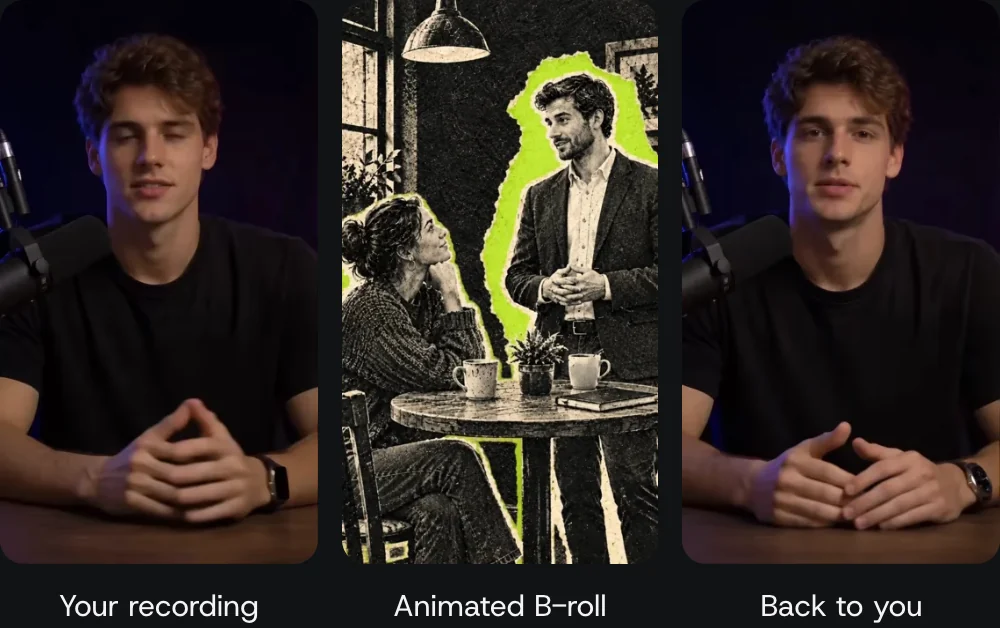
The illustration, captions and original recording stay separately editable. End the illustration a beat earlier to catch the guest’s smile, or correct the café name in one caption. Both edits keep the original voice and cost no extra credits.
The illustrated option is called Story. It accepts vertical recordings from three seconds to two minutes, up to 100 MB. Preview the edit for free. One purchase lets you download the same project as an MP4: credits from $4.50 once, or Creator at $24 a month.
Sources: Smart Captions input limits and examples, How to time a cutaway, Plamia plans
2. Submagic for stock and footage you shot yourself
Submagic is a practical choice for the baker. Open B-Rolls, search the stock library for an establishing shot, then upload the actual dough close-up for the line about the bubbles. Magic B-rolls can fill a first pass automatically. You can also add just the insert you need.
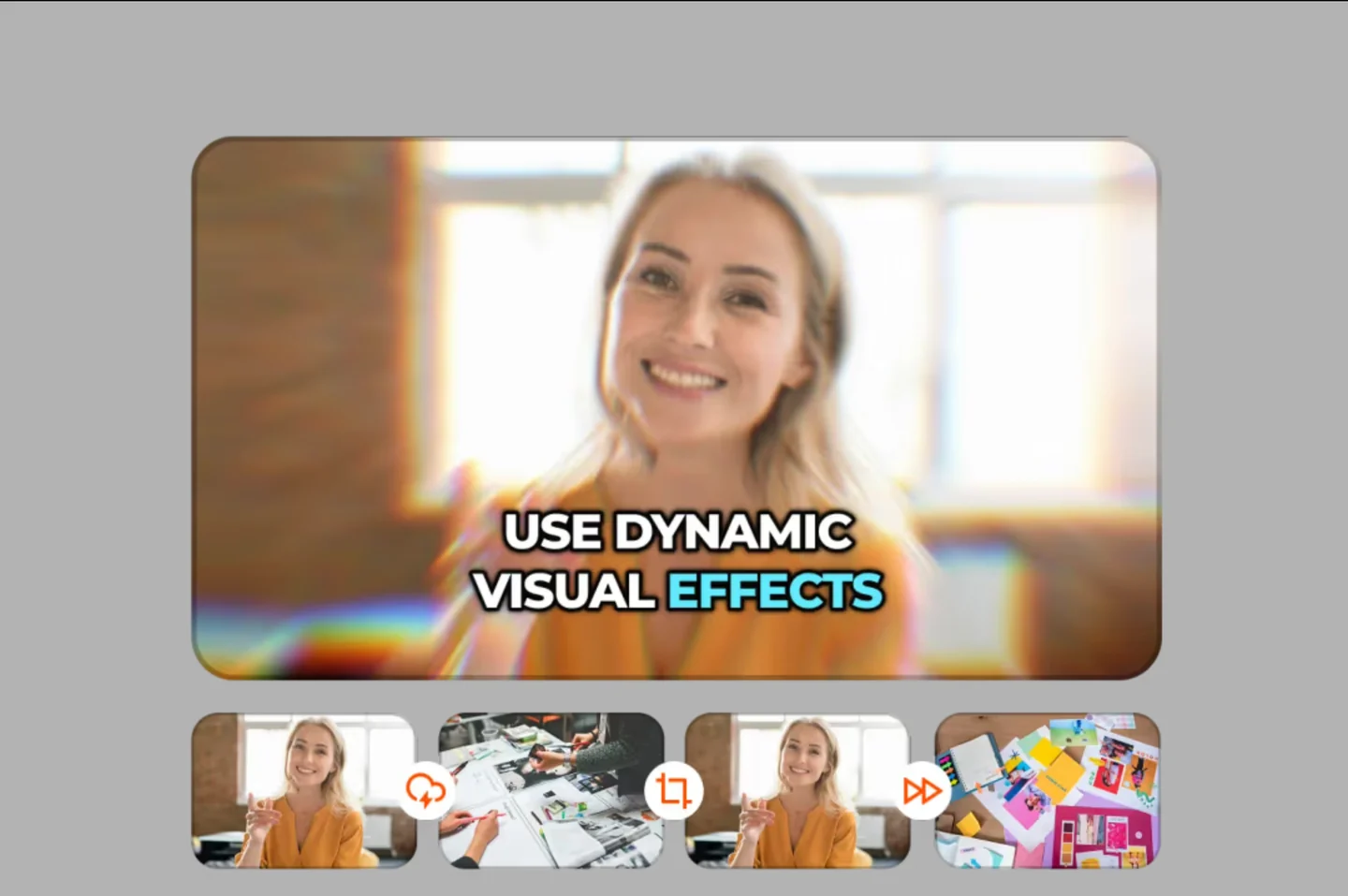
The timer takes start and end values in seconds. End the insert as the baker looks back up, or let it run into the next sentence if her hands are still doing something worth seeing. Starter is listed at $19 per member per month, with two-minute videos, free-library B-roll, and clean 1080p exports. Check the library tier if a particular premium shot is essential.
Sources: Submagic B-roll examples, Choose footage and set timing, Submagic plans, Submagic trial and watermark
3. VEED for changing one B-roll suggestion
VEED’s Magic B-Roll transcribes a recording and puts its visual suggestions on a separate timeline track. Suppose you like four of the five shots. Select the fifth item and choose Replace to upload your own file or pick a different stock clip. Regenerate on that item requests another suggestion.
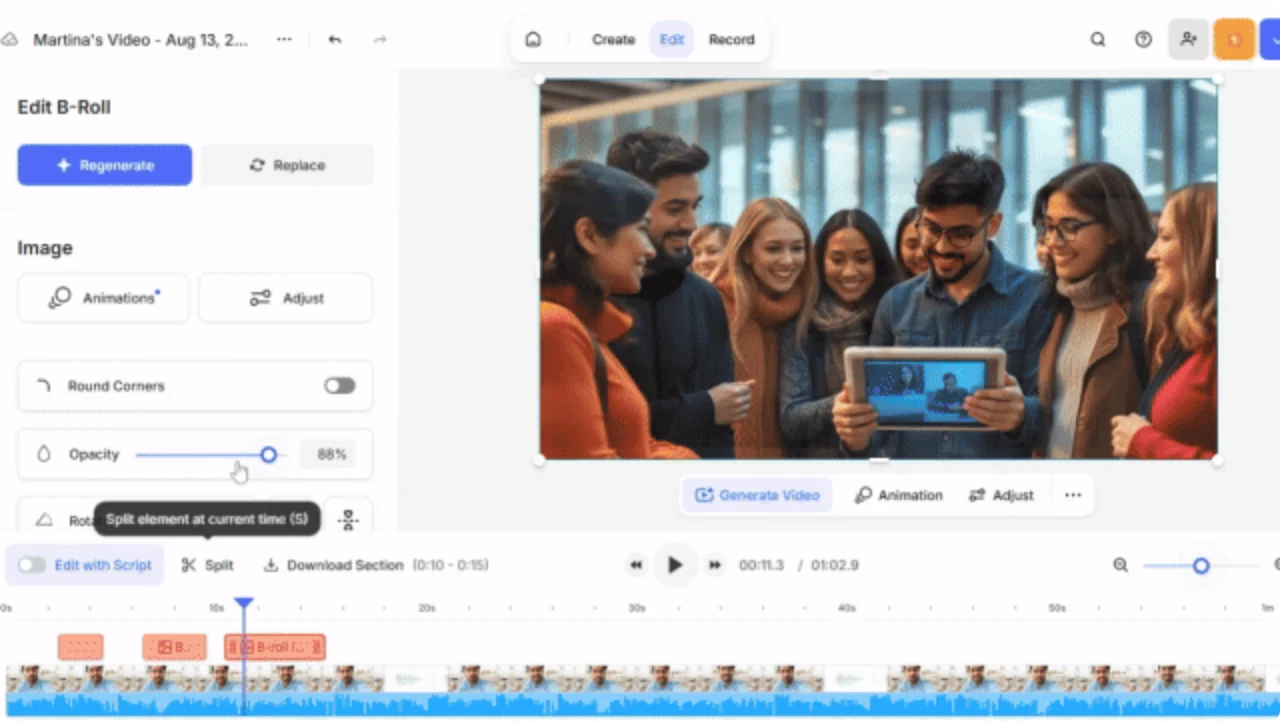
There is also a Regenerate command on the source video. That one replaces the whole set. The distinction matters once you have timed a few good shots by hand. VEED’s web guide lists one Magic B-Roll use on Free or Lite and unlimited use on Pro. Free exports carry a watermark. Lite removes the watermark but keeps the one-use B-roll limit.
Sources: VEED Magic B-Roll guide and usage limits, VEED export watermarks
4. Captions for a directed edit on iPhone
Pick Captions when you want the cutaways, captions, music, and graphics to feel like one edit. In the iOS AI Edit workflow, import the footage, pick a style, and describe the result. A useful instruction for the baker is “show my dough when I mention the bubbles, then return to me before I explain the smell.” Include the close-up as source footage.
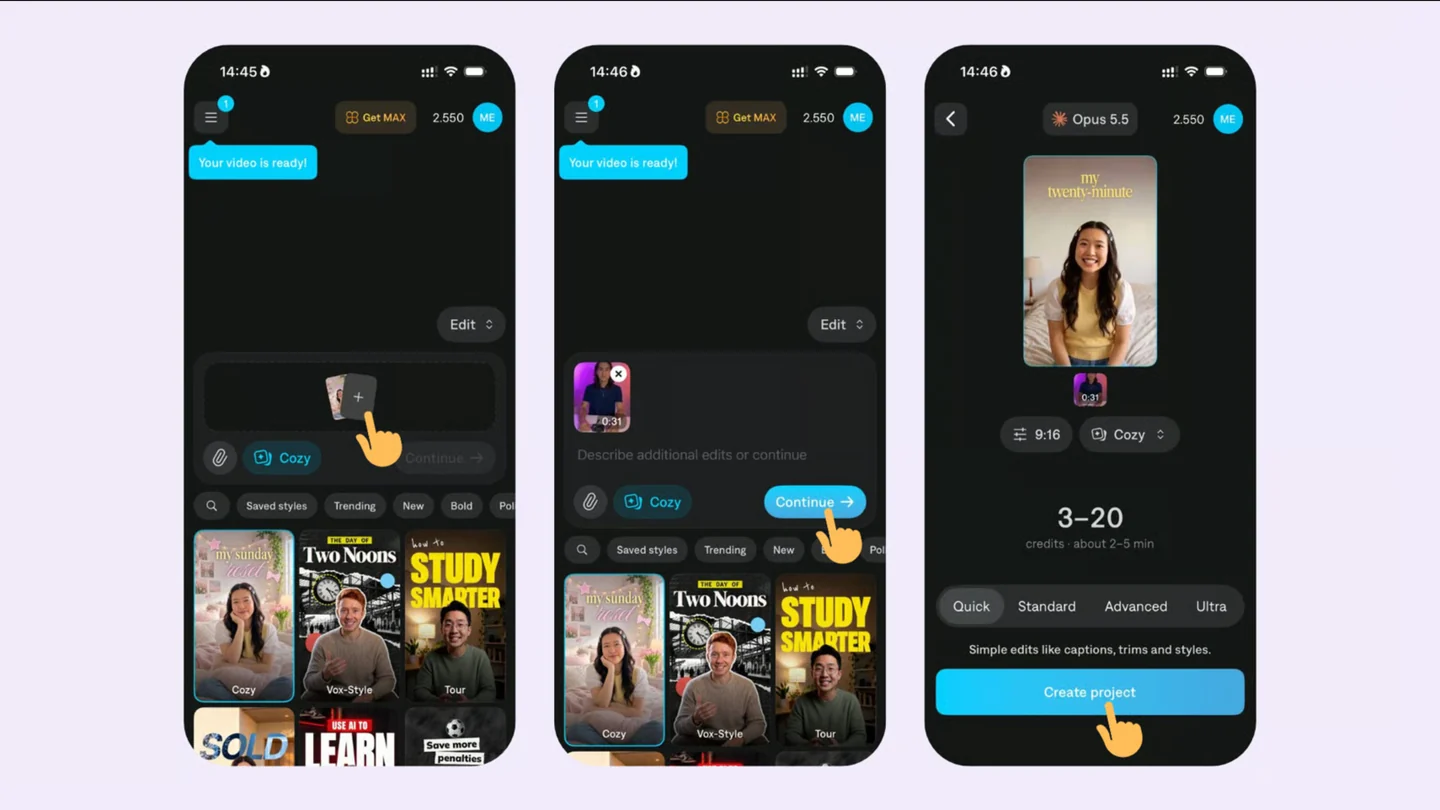
An edit that starts two beats early is easy to fix manually. Tap the element on the timeline and adjust it for free. Asking the chat editor to make the change uses credits. The new editing workflow is rolling out on iOS, and older styles can have fewer editable elements. Captions lists AI Edit on Max at $24.99 with 500 monthly credits.
Sources: Captions iOS editing workflow, Generate or replace overlays, Captions plans and credits
5. OpusClip for highlights from a longer interview
If the baker’s interview runs for half an hour, the first task is finding the 40 seconds about the dough. OpusClip makes short clips from a longer recording. Once you have the excerpt, open its editor to add B-roll automatically or select a sentence for a specific insert. You can also upload your own footage.
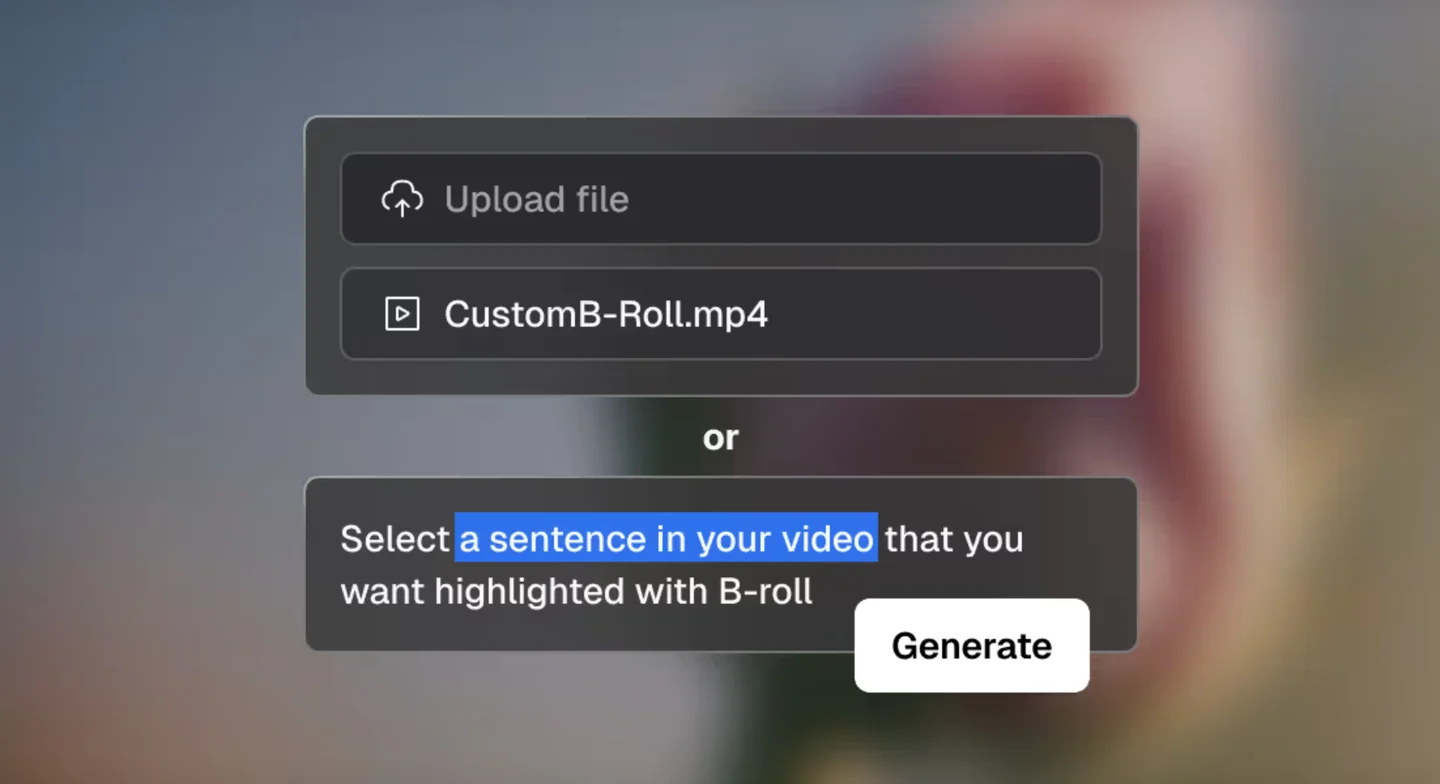
The stock library draws from Pexels. Drag or trim a chosen clip on the timeline. If it ends before the speaker finishes, swap it for a longer source or return to the speaker. The stock clip can only extend as far as the original footage. Starter is $15 billed monthly and lists three clips a month each for AI image B-roll and stock B-roll. Generated video B-roll is a separate feature on Pro.
Sources: OpusClip B-roll controls, OpusClip allowances by media type
B-roll tools compared
For the plan comparison, assume you have two 30-second interviews to finish this month. You want automatic cutaways on both and two watermark-free downloads. Stock clips or still images are enough for this example.
| Feature | Plamia | |
|---|---|---|
| Can it add cutaways from speech? | Yes | Yes |
| What can the automatic edit put on screen? | Original illustrations of what the speaker describes | Stock footage matched to the speaker’s words |
| What stock media can I search for? | No built-in stock library | Stock video, including Storyblocks on higher plans |
| Can I insert a clip I filmed? | Yes | Yes |
| How do I change when a cutaway plays? | Move or trim the illustration on its track | Set start and end times in seconds |
| Can I export this edit watermark-free on a free plan? | No | No |
| Which paid plan covers both edits? | No plan needed: credits from $4.50 | Starter |
Which shot belongs over the next sentence?
An illustration works for a memory or an idea the camera could never have captured. Stock works for a general setting. When a presenter describes a specific product, person, or result, use the actual footage if you have it. That single choice will often improve the edit more than adding another cutaway.
Play the transition with the sound on. The viewer should see the detail by the time they hear its name. Cut back to the speaker when their reaction, expression, or next instruction becomes the most useful thing on screen.
Frequently asked questions
Can B-roll play without interrupting my voice?
Yes. Keep the spoken recording as the audio bed and put the cutaway above it. Mute any unwanted audio on an uploaded insert before exporting.
Can I add B-roll to a silent recording with these tools?
You can place footage manually. Speech-based matching needs something to transcribe. VEED explicitly requires audible speech, and Plamia Smart Captions requires a spoken audio track.
Which tool should I use for a long podcast interview?
Use OpusClip if you also need to find and extract the highlights. If you already have a finished vertical excerpt, you can take it straight into a tool such as Submagic, VEED, or Plamia.